


Liberty VPN on Android TV with v2rayNG and v2rayTun
Connect to Liberty VPN on Android TV using either v2rayNG or v2rayTun.
Screenshots show the Russian interface. English labels below are translations; wording may vary by app version.
Before you start
- Get your subscription link or its QR code from your service bot or account.
- For this v2rayNG installation method, you need a USB drive. For v2rayTun, you need Google Play and a browser on your TV.
- Use your own subscription link. Screenshots show interface examples.
Connect with v2rayNG
Install the app
- On the official v2rayNG releases page, choose an APK suitable for your TV, download it, and save it to a USB drive.
- In your service bot or account, obtain your subscription QR code and save it to the USB drive.
- Install a file manager, such as File Manager Plus.
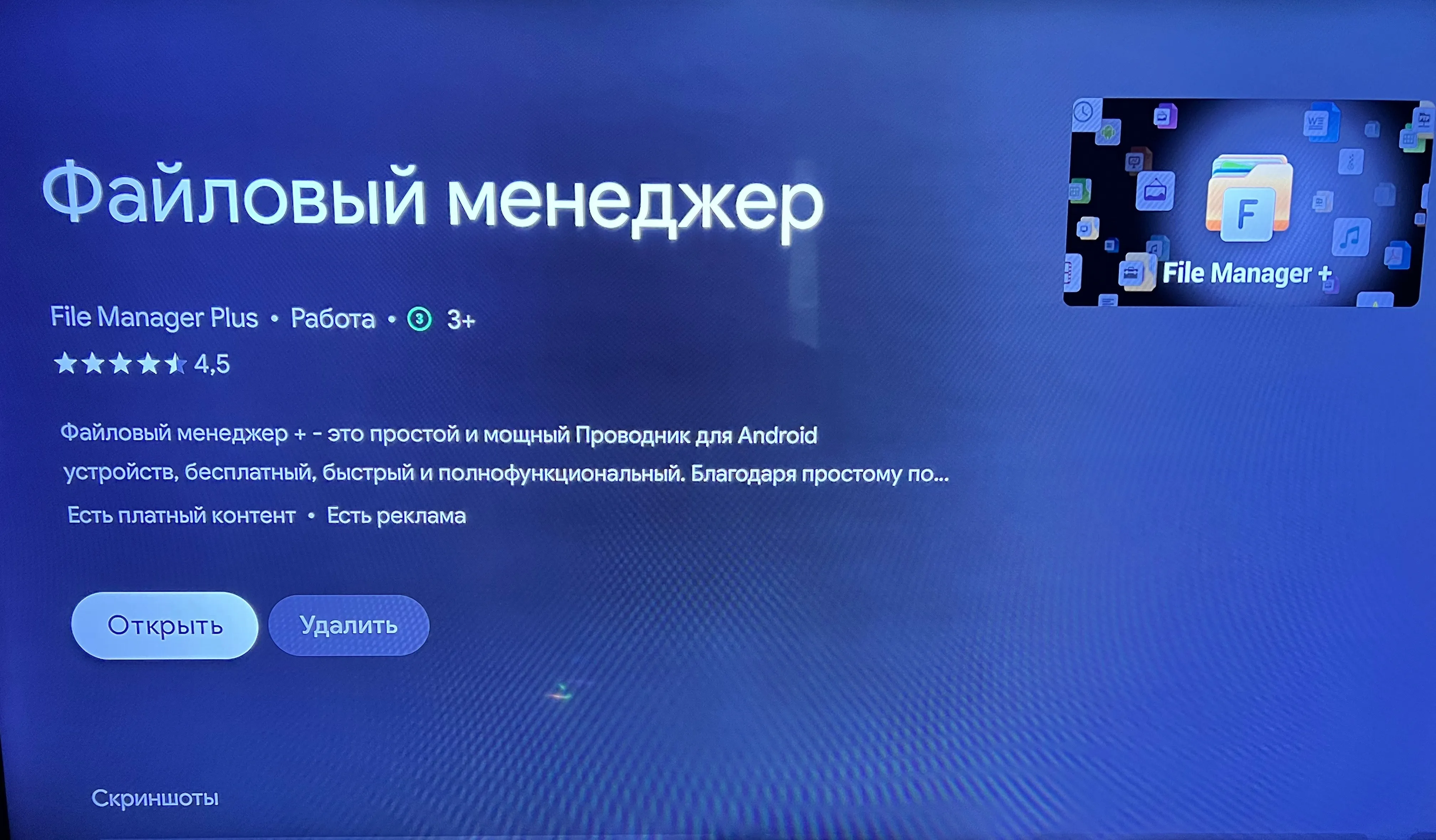
- Connect the USB drive to your TV and open the APK in the file manager.
- Confirm installation and wait for it to finish.
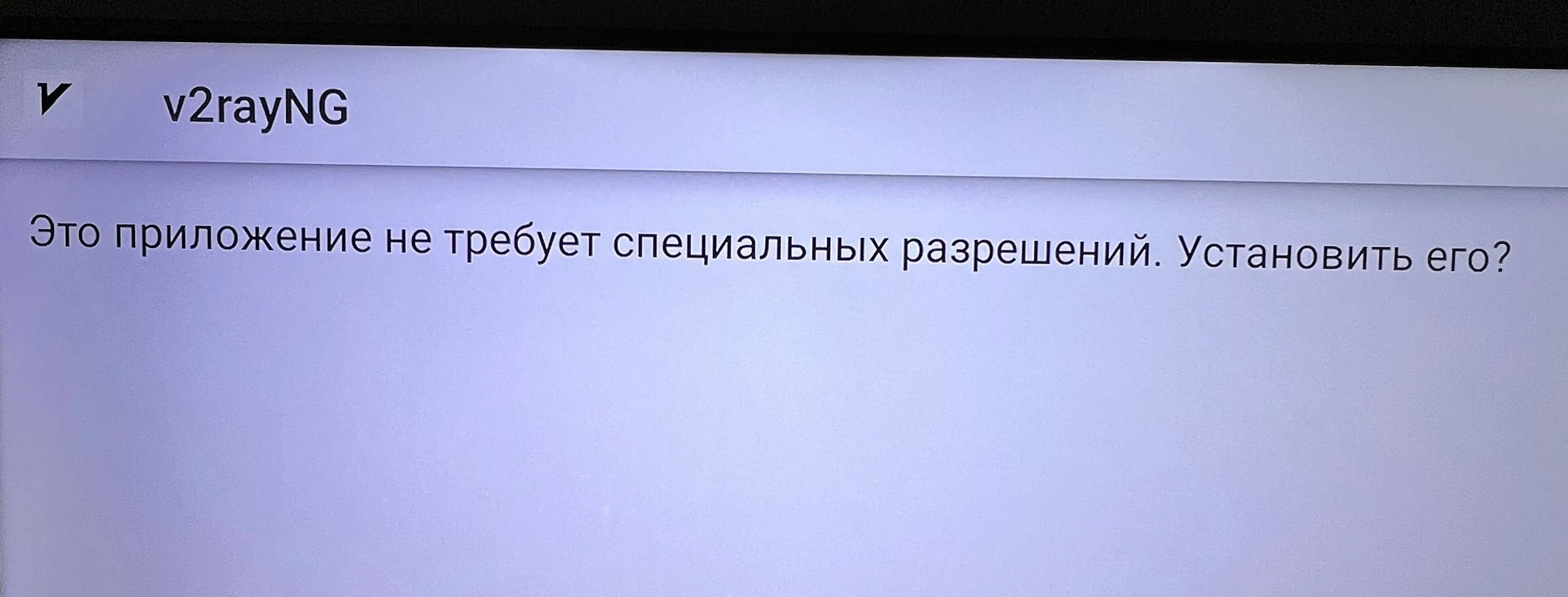
Import the QR code and connect
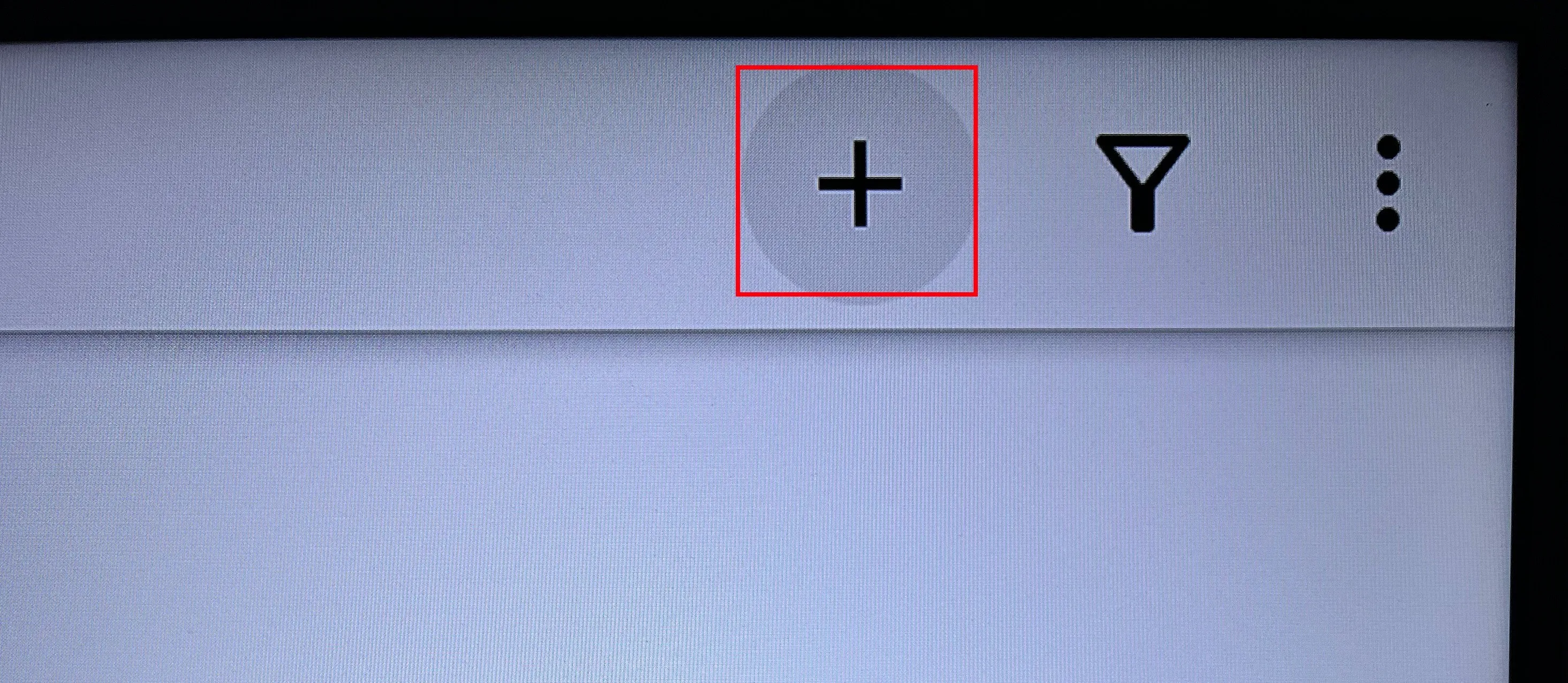
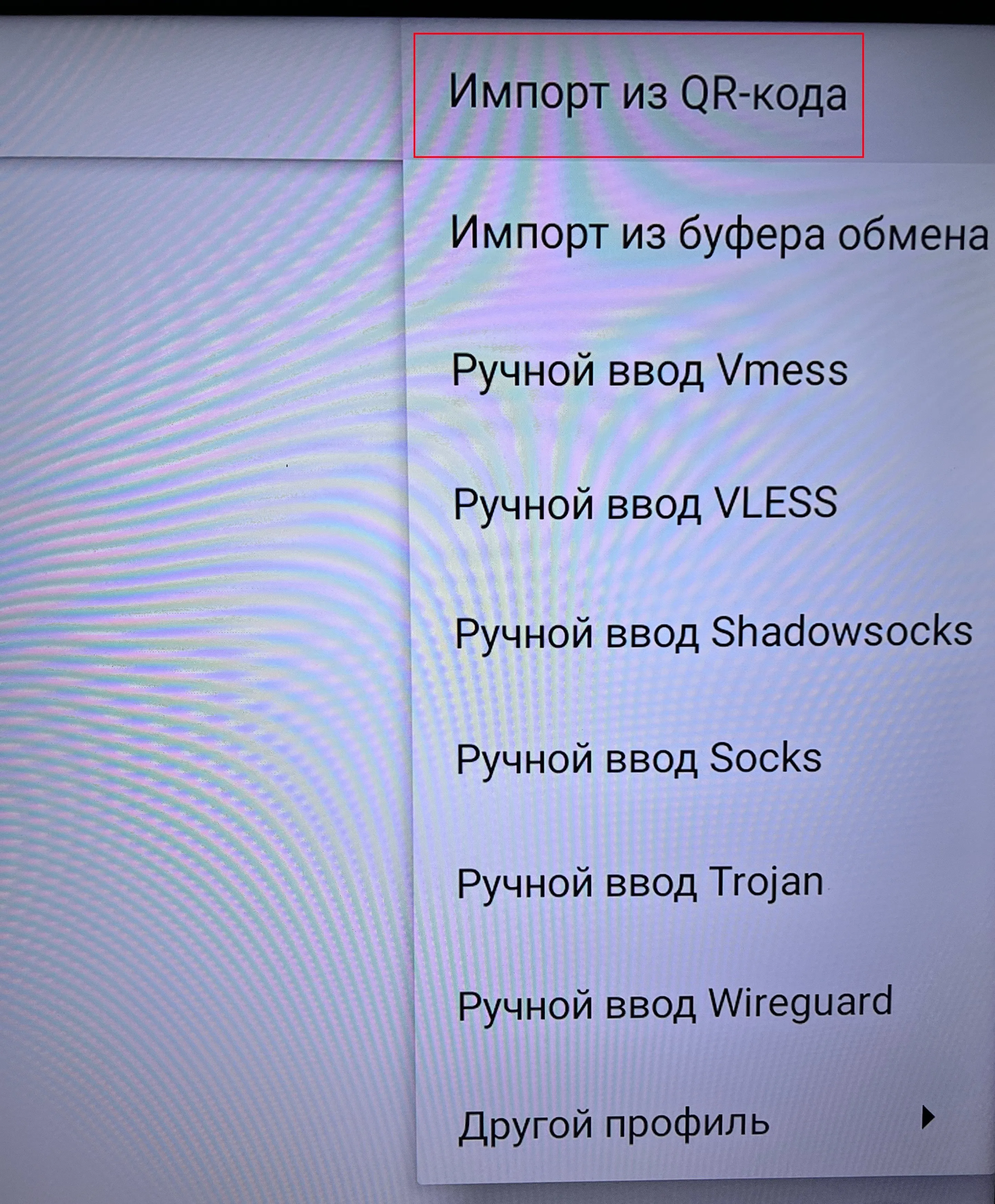
- Open v2rayNG and select
+.
- Select
Import from QR code.
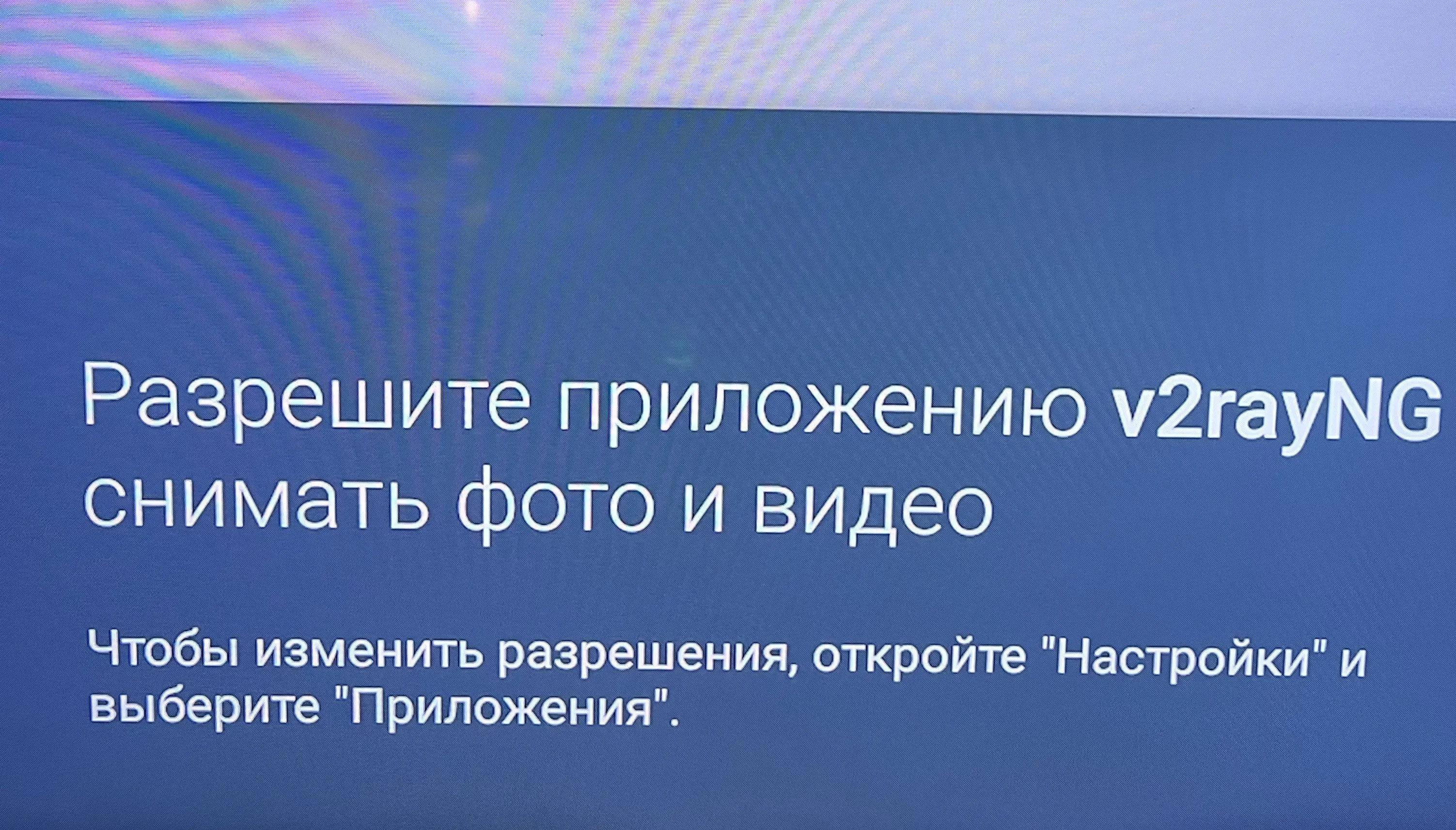
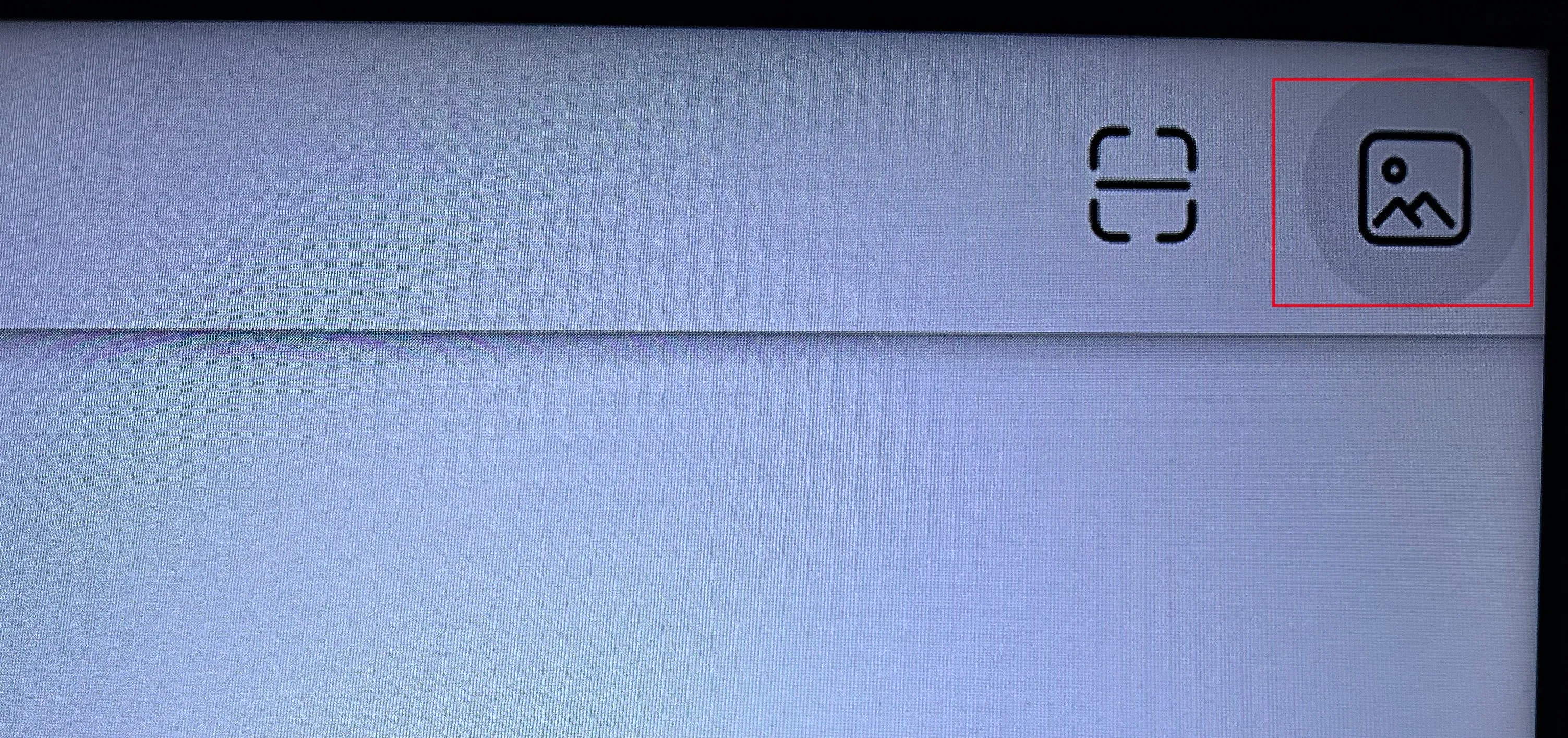
- Select the image icon and choose the QR code file saved on your USB drive.
- After importing, select a server and press the round connect button.
Connect with v2rayTun
- Install v2rayTun from Google Play on your TV.
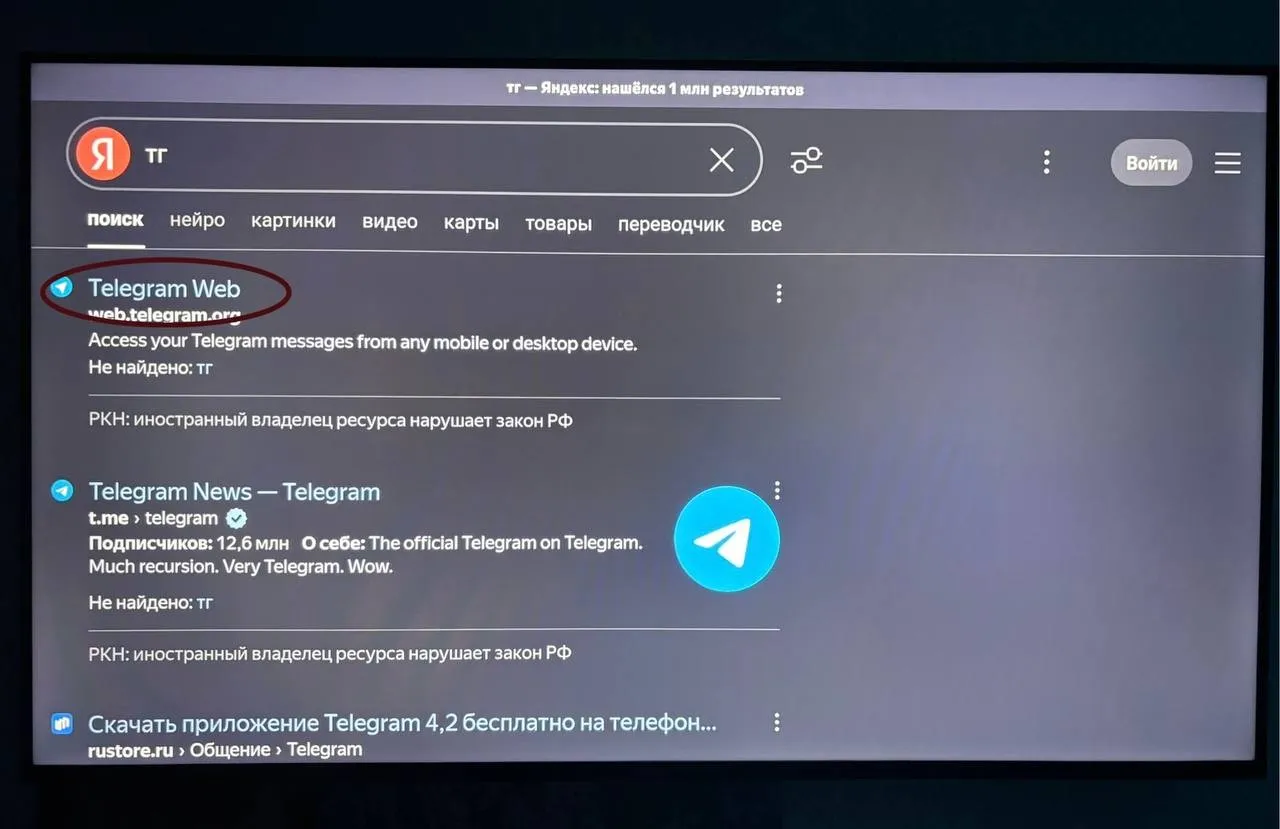
- Open Telegram Web in your TV browser.
-
Open your subscription in your service bot and copy your subscription link using the browser’s copy command.
-
Open v2rayTun and select
Management → Import from clipboard.
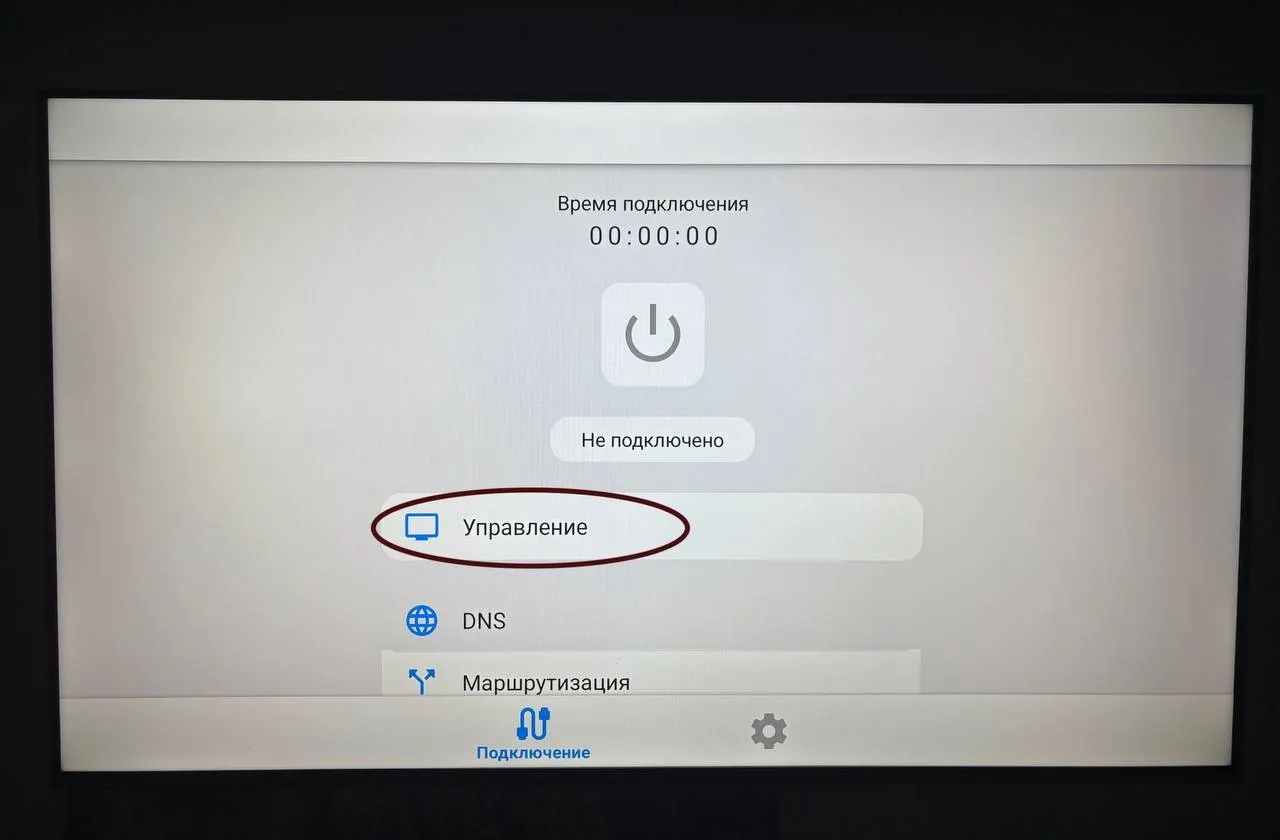
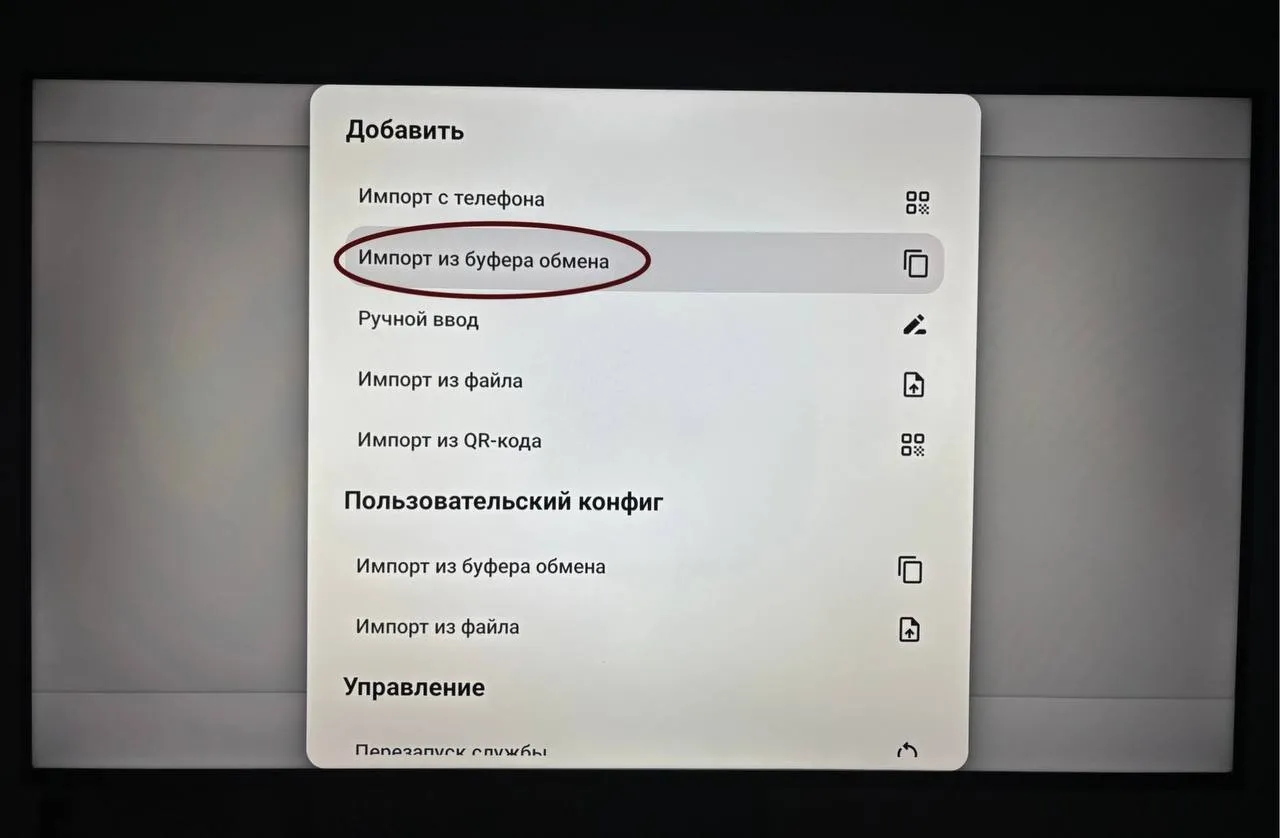
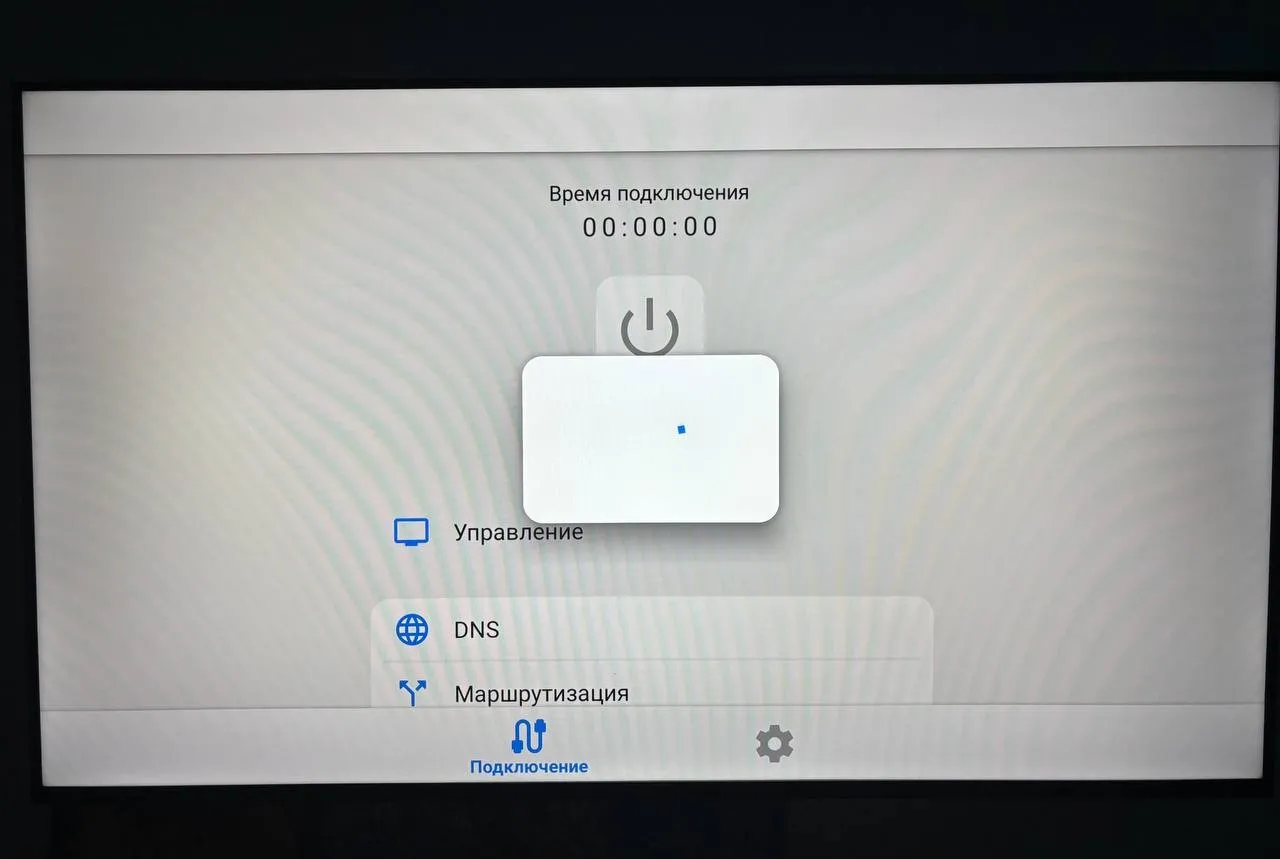
- Wait for the locations to load and select one.
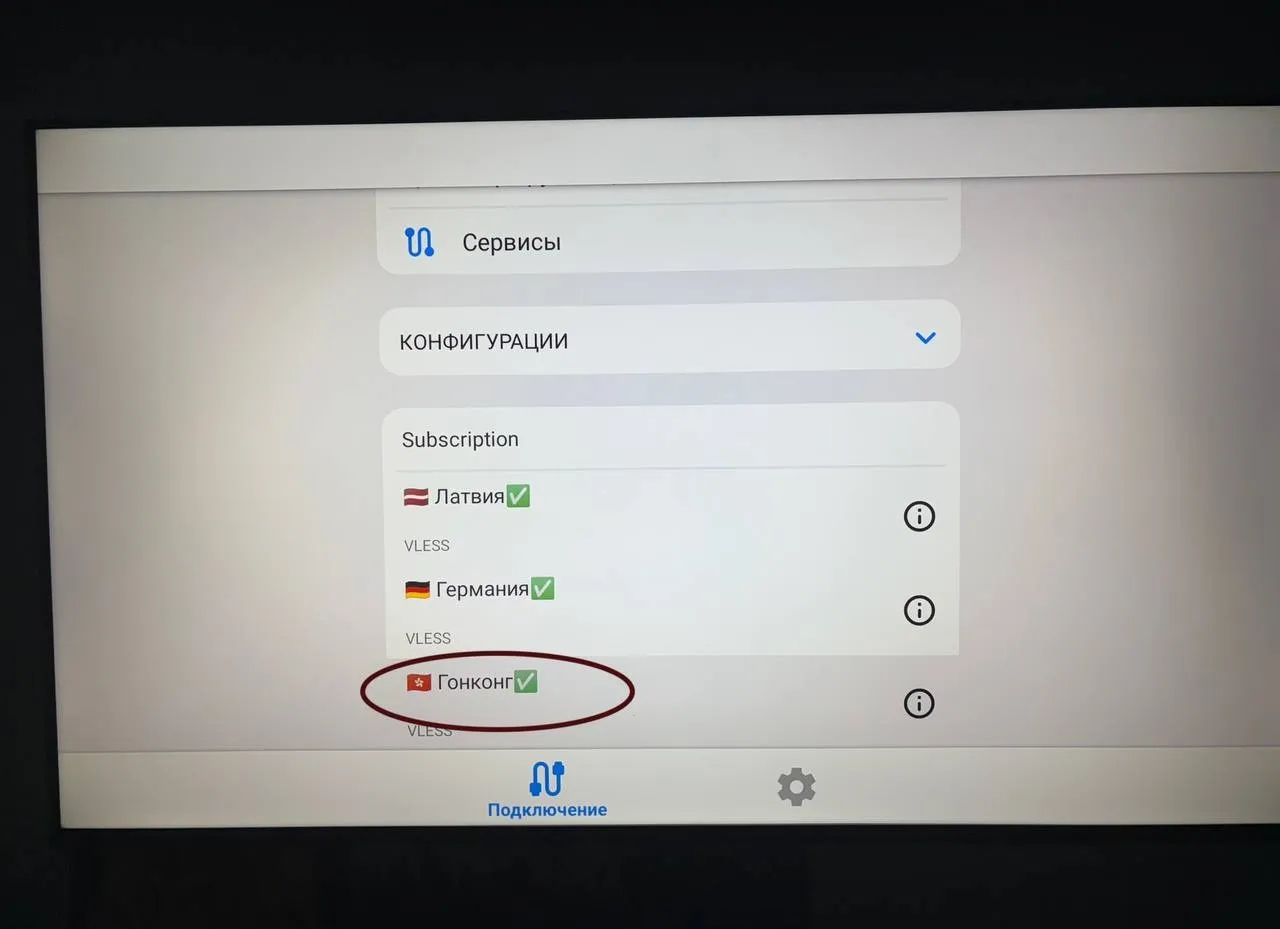
- Press the connect button and approve the system VPN request.
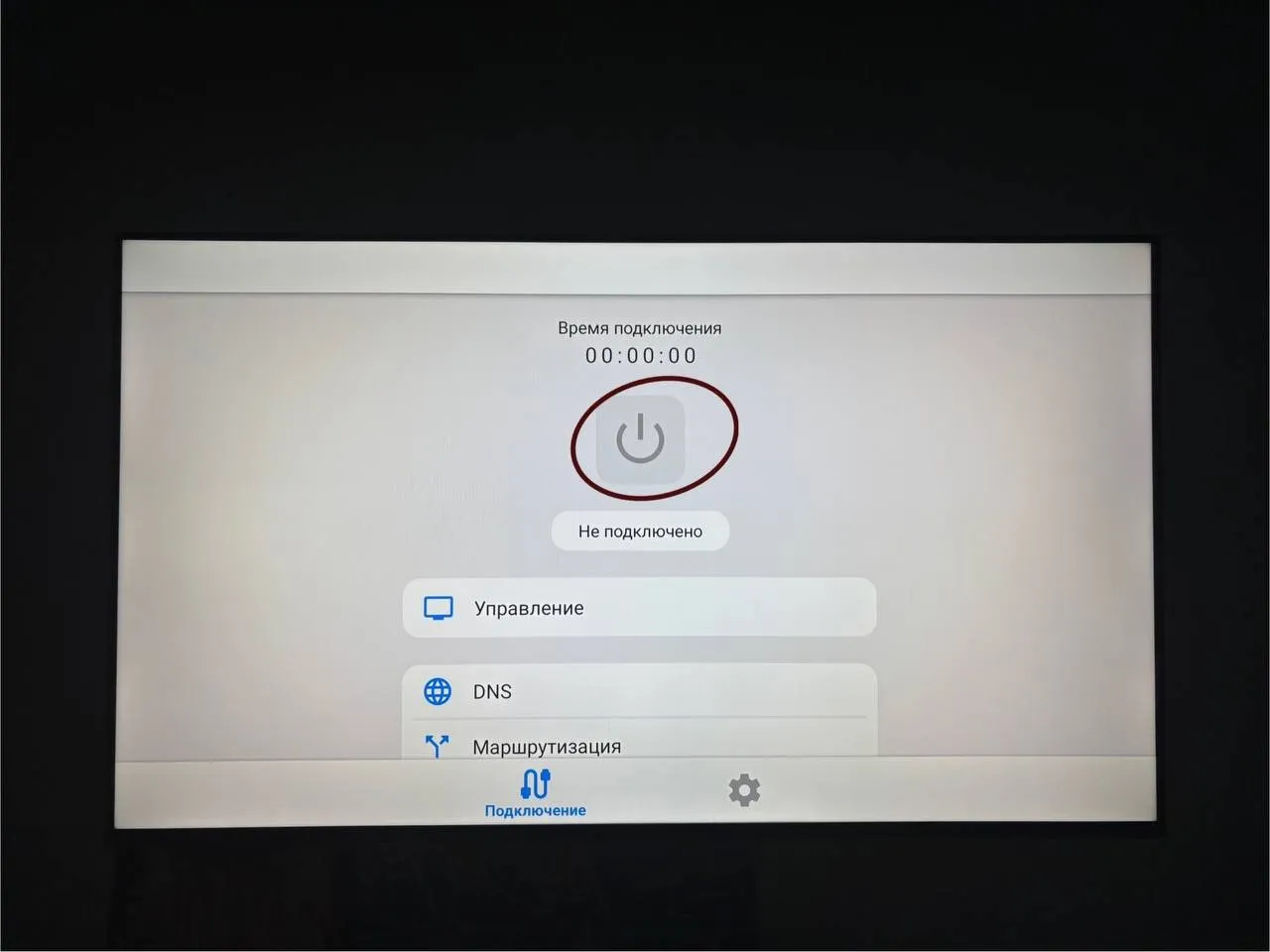
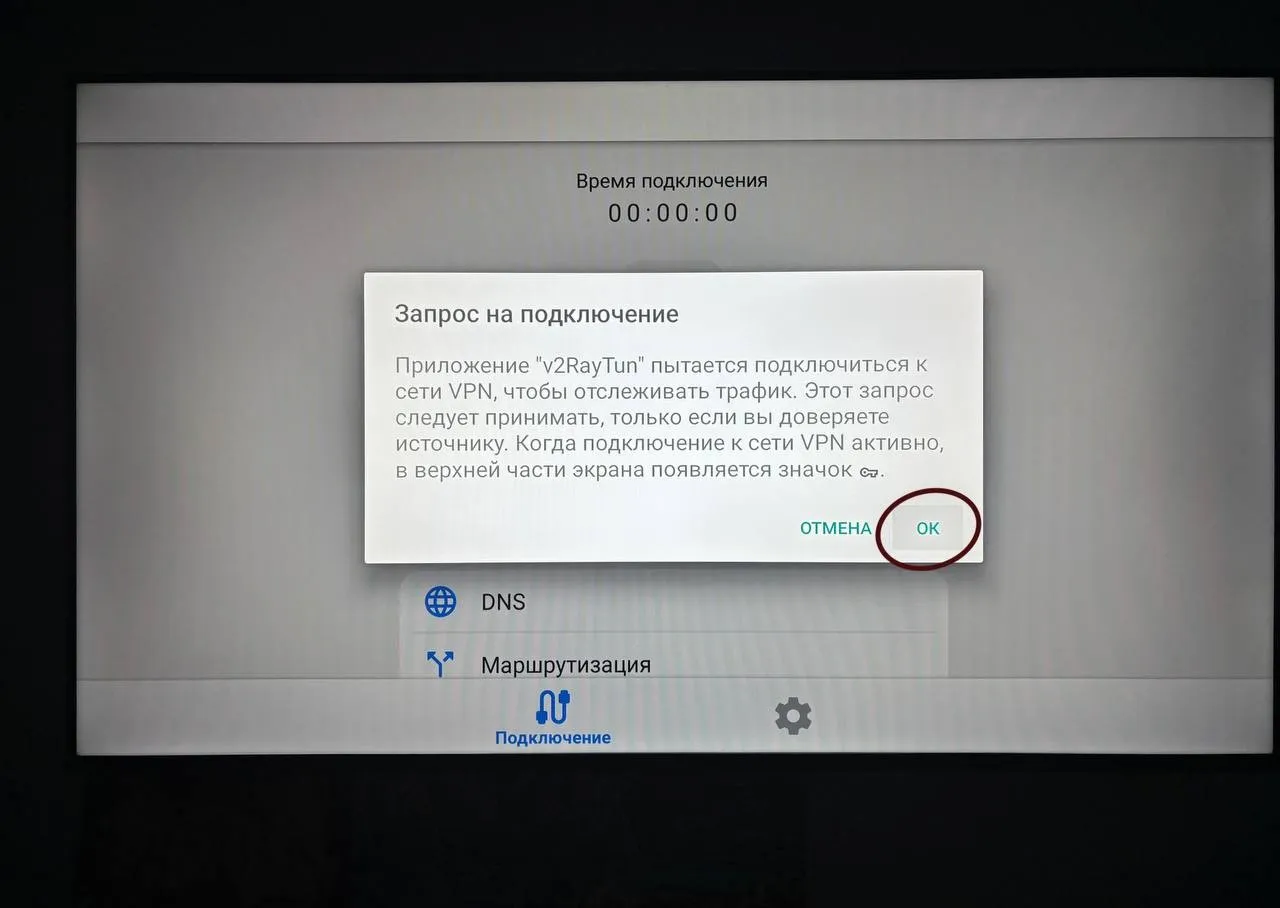
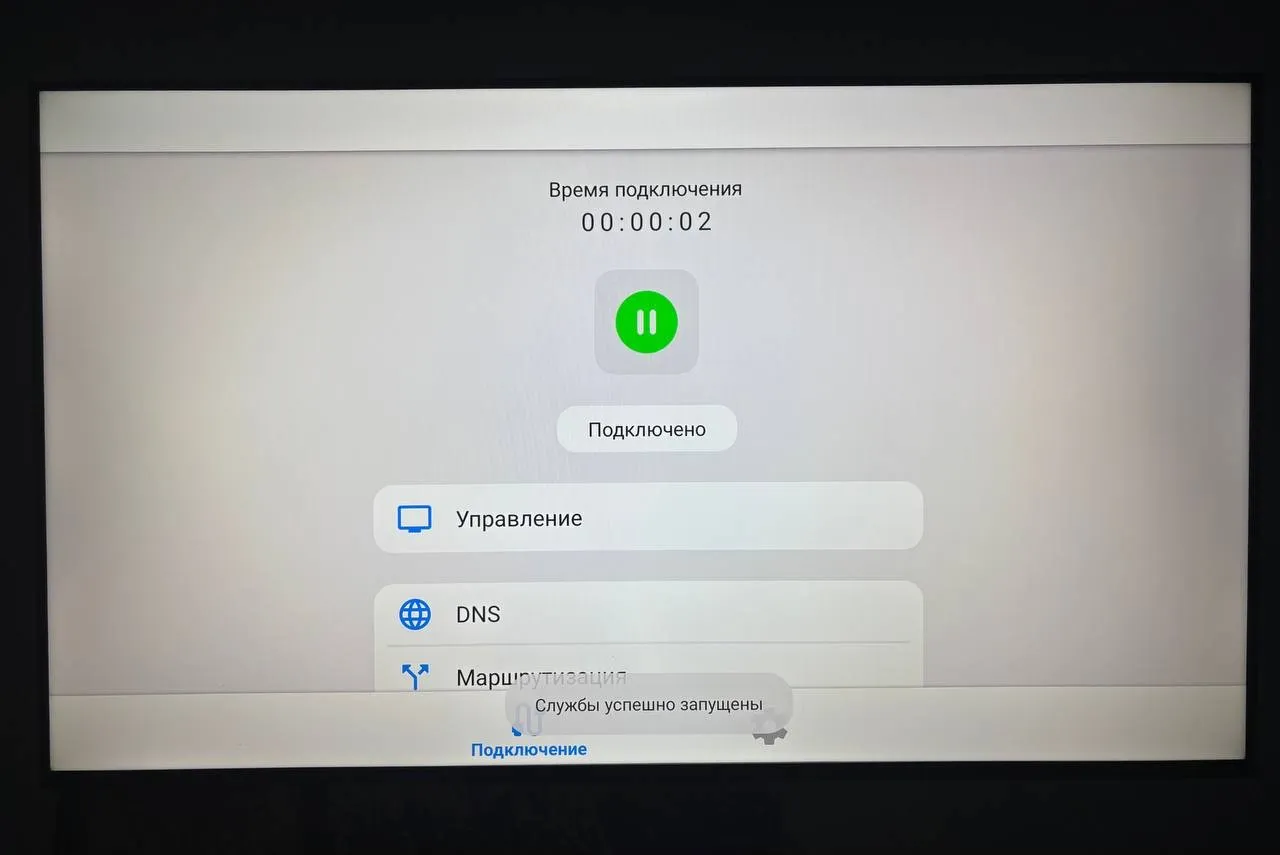
- Check that the app shows an active connection.
Need help connecting?
Tell us which device you use and where you got stuck. Liberty support can help you connect.