


Liberty VPN on Apple TV with Shadowrocket
Connect to Liberty VPN on Apple TV using Shadowrocket.
Screenshots show the Russian interface. English labels below are translations; wording may vary by app version.
Before you start
- This method requires an Apple TV and an iPhone or iPad.
- Shadowrocket requires tvOS 17 or later on Apple TV, iOS 13 or later on iPhone, and iPadOS 13 or later on iPad.
- Get your subscription link from your service bot or account.
- Use your own subscription link. Screenshots show interface examples.
Install the app
- Open Shadowrocket in the App Store.
- Install it on both your Apple TV and your iPhone or iPad.
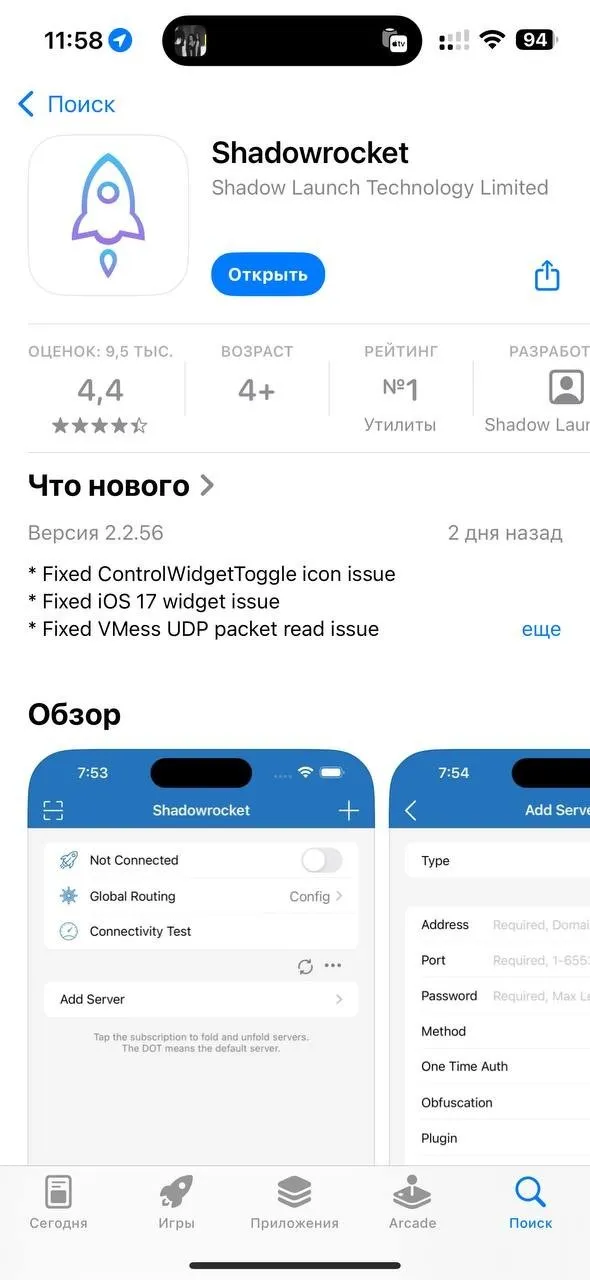
Shadowrocket is a paid app. Check the App Store for the current price.
Add the subscription on your iPhone or iPad
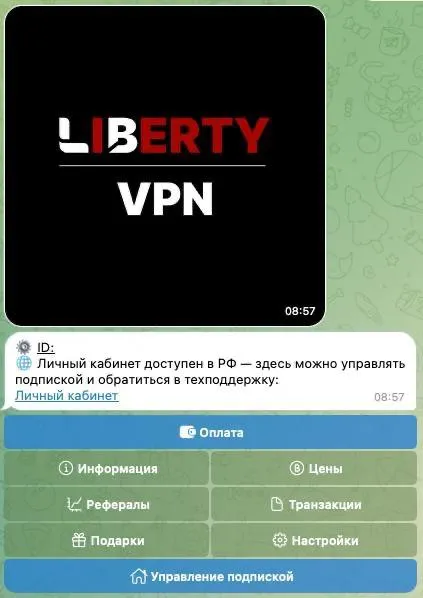
- Open the subscription section in your service bot or account.
-
Copy your subscription link.
-
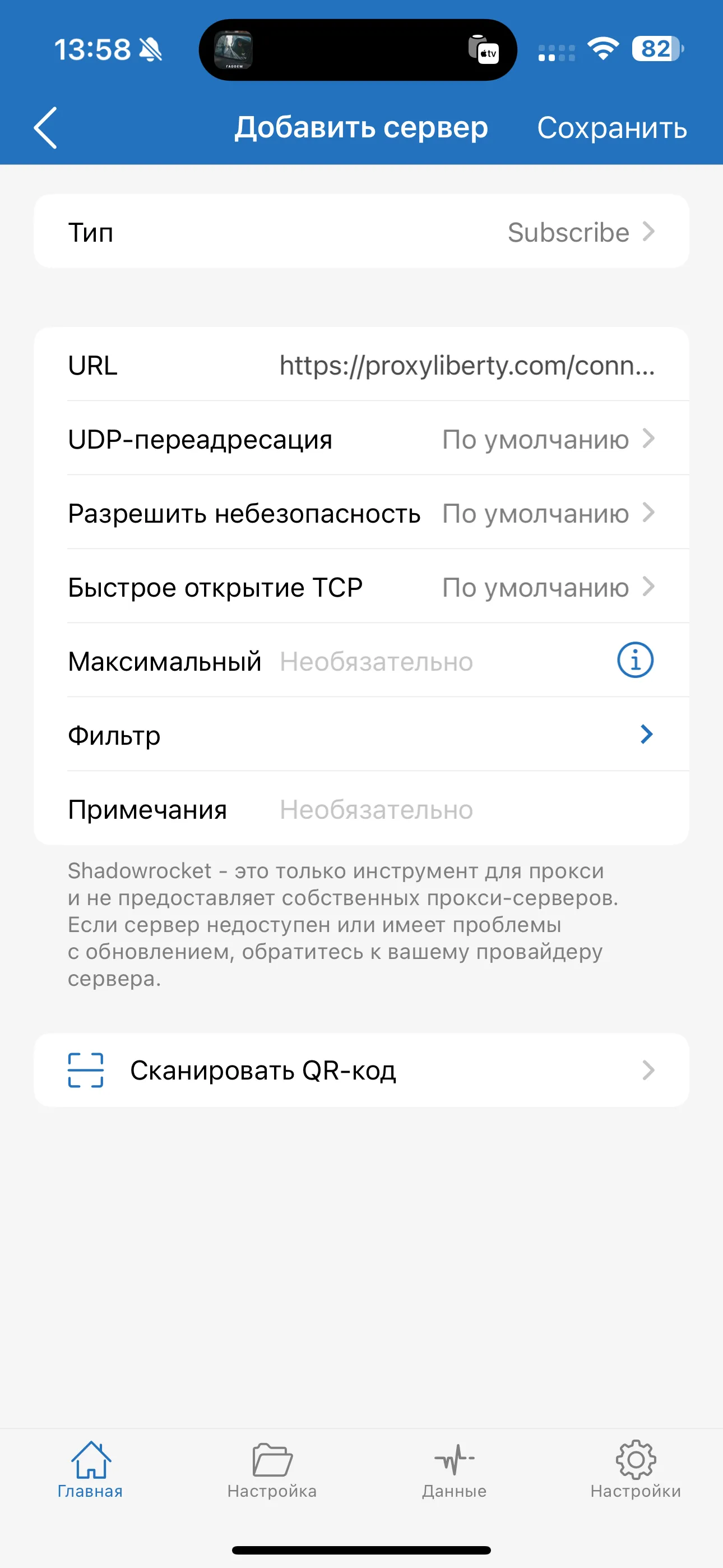
Open Shadowrocket and tap
+in the top-right corner. -
Set
TypetoSubscribe. -
Paste your subscription link into
URLand tapSave.
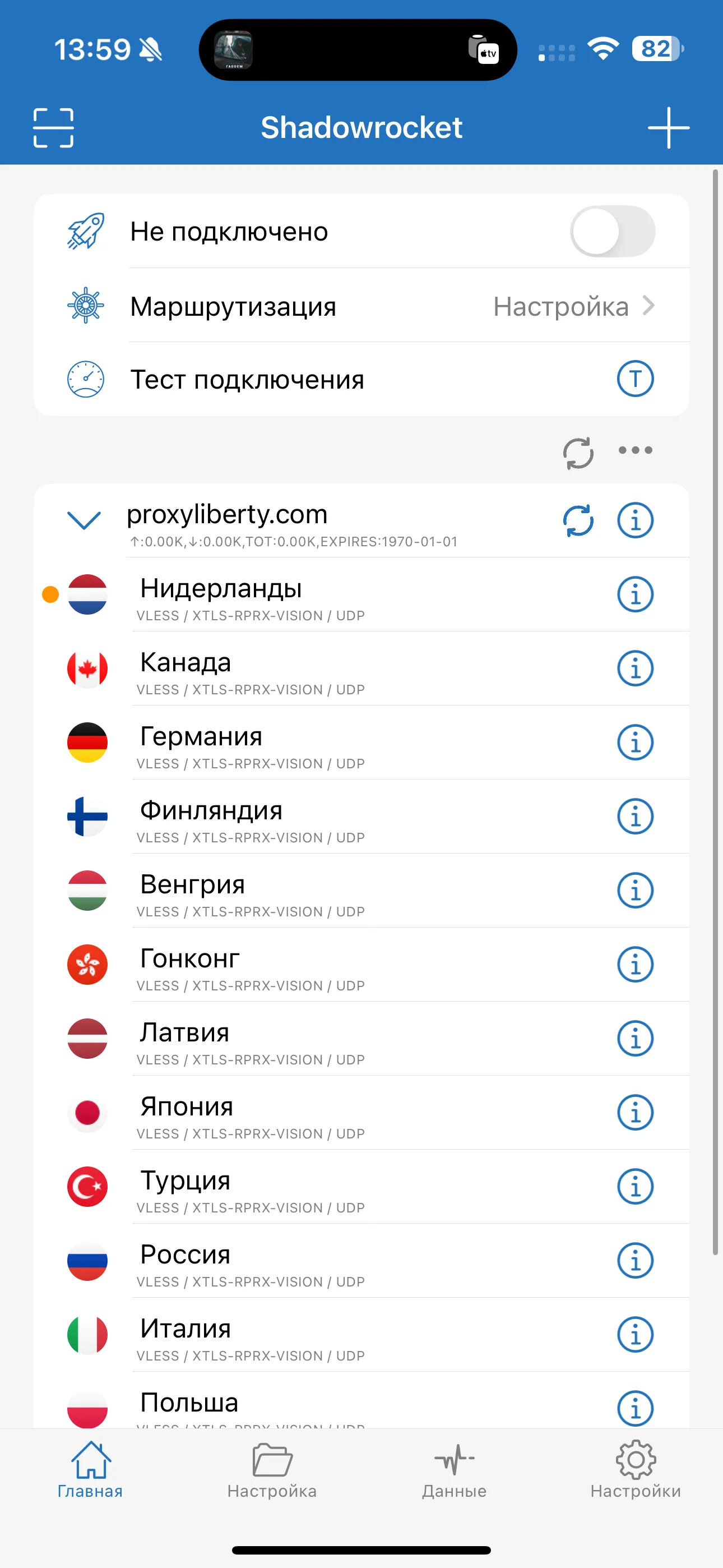
- Wait for the server list to appear.
Transfer servers to Apple TV
- On your iPhone or iPad, open
Data → Apple TV. - Open the same tab in Shadowrocket on your Apple TV.
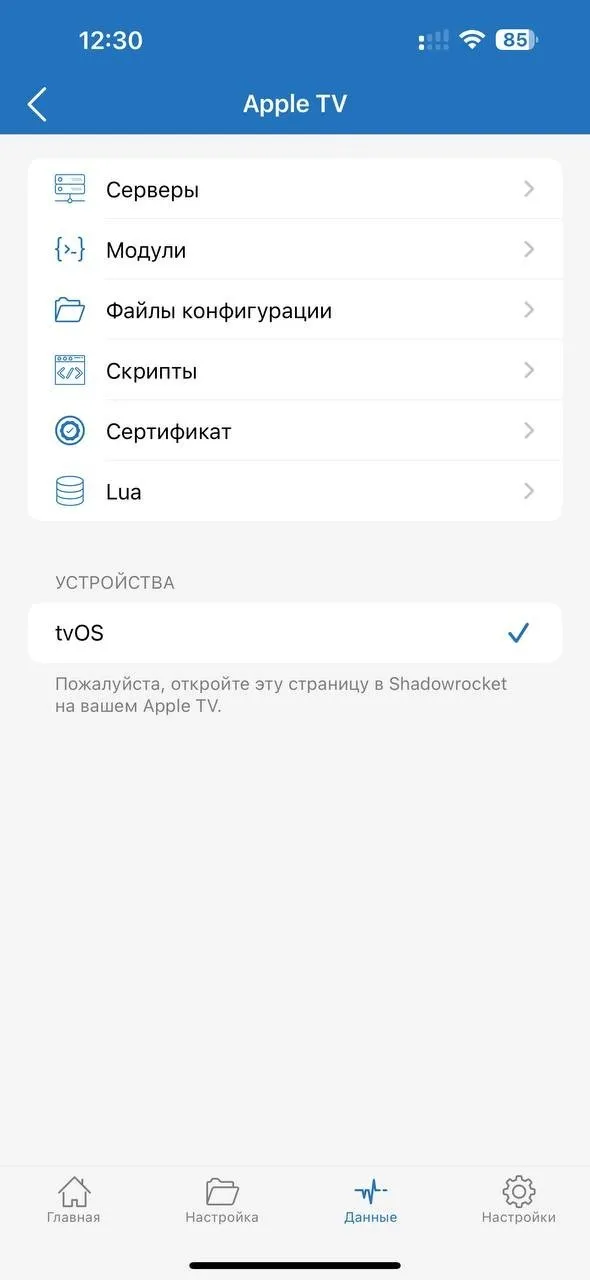
- On your phone, tap
Servers. - Wait for the success message confirming that the data has been transferred.
- On Apple TV, return to Shadowrocket’s main screen and connect.
Need help connecting?
Tell us which device you use and where you got stuck. Liberty support can help you connect.