


VPN setup on a Liberty router with PassWall
This guide is for a Liberty router with preconfigured firmware and PassWall. The admin address, initial password, and interface labels below apply to that configuration; they are not universal settings for all OpenWrt routers.
Screenshots are reused from the Russian guide. English interface labels below are translations; wording may vary by app version.
Before you start
- Get your complete personal subscription URL from your service bot. Keep it private and hide the token in screenshots.
- The password for the
libertyWi-Fi network is printed on the back of the router. - Do not press the
RESETbutton.
Initial setup
- Connect the Liberty router to power.
- Connect a cable from a
LANport on your main router to theWANport on the Liberty router.
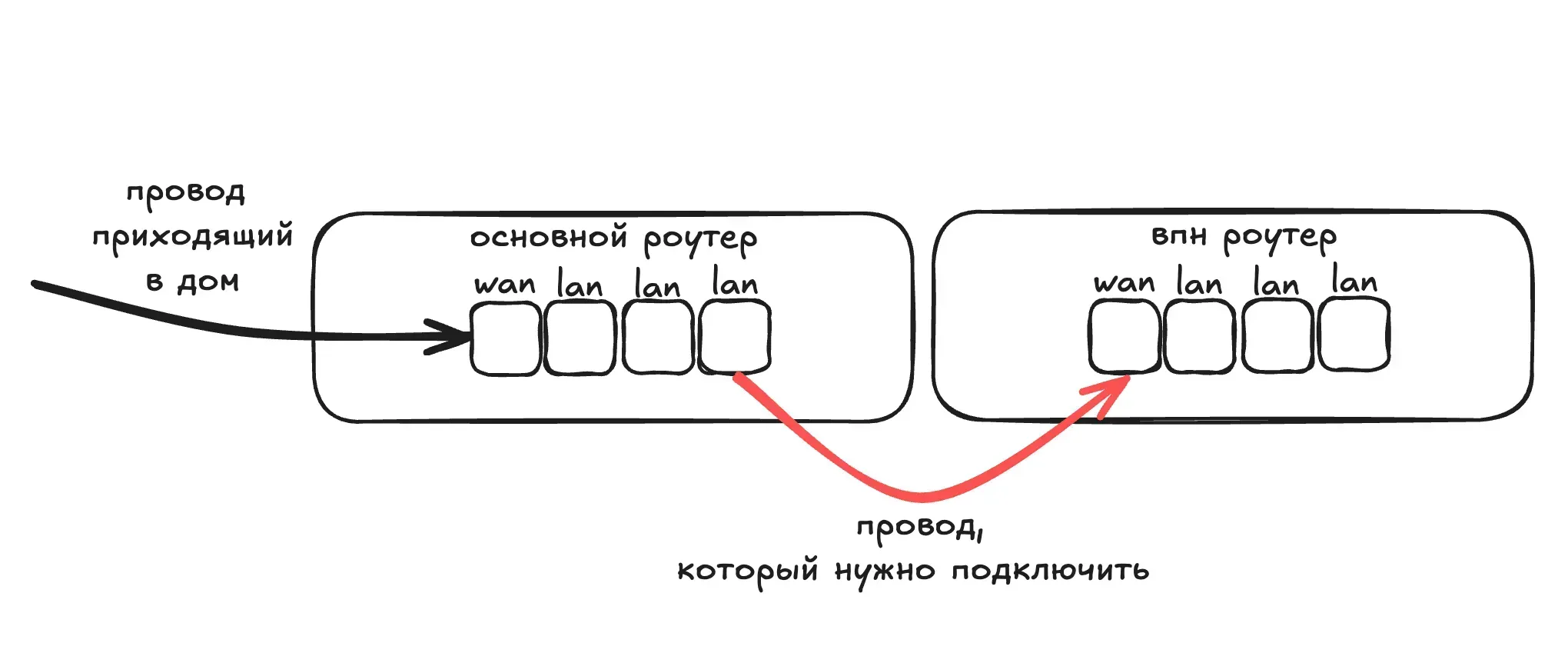
- Join the
libertyWi-Fi network using the password on the back of the router. - Open http://openwrt.lan in your browser.
- Enter the initial login password for the preconfigured Liberty router:
admin. If it has already been changed, use the current password. - Set your Wi-Fi name and password, then configure the VPN.
Change the Wi-Fi name and password
- In the admin panel, open
Network → Wireless. - Choose the
2.4 GHzor5 GHznetwork and selectEdit.
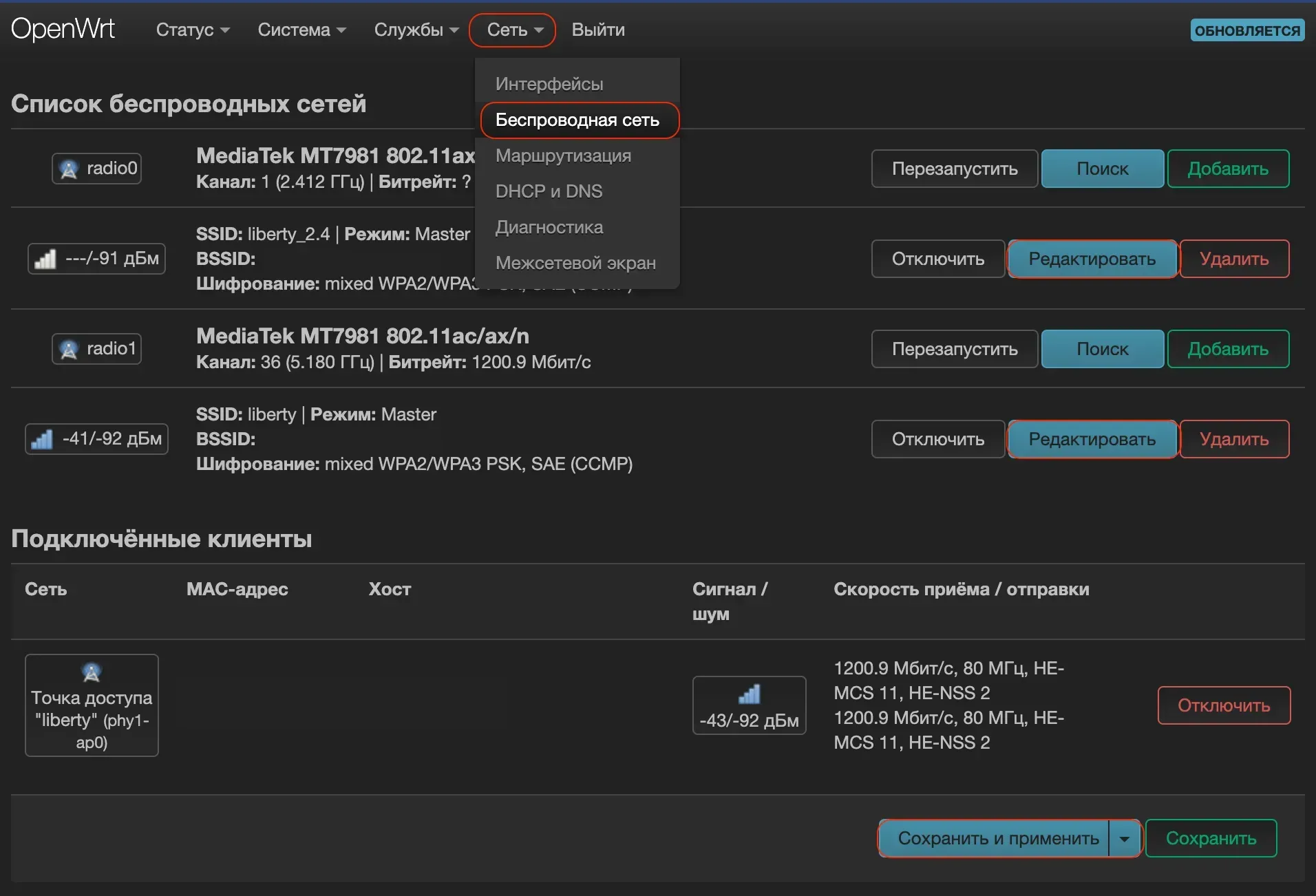
- Enter the network name in
ESSID.

- Under
Wireless Security, changeKeyto set the Wi-Fi password.
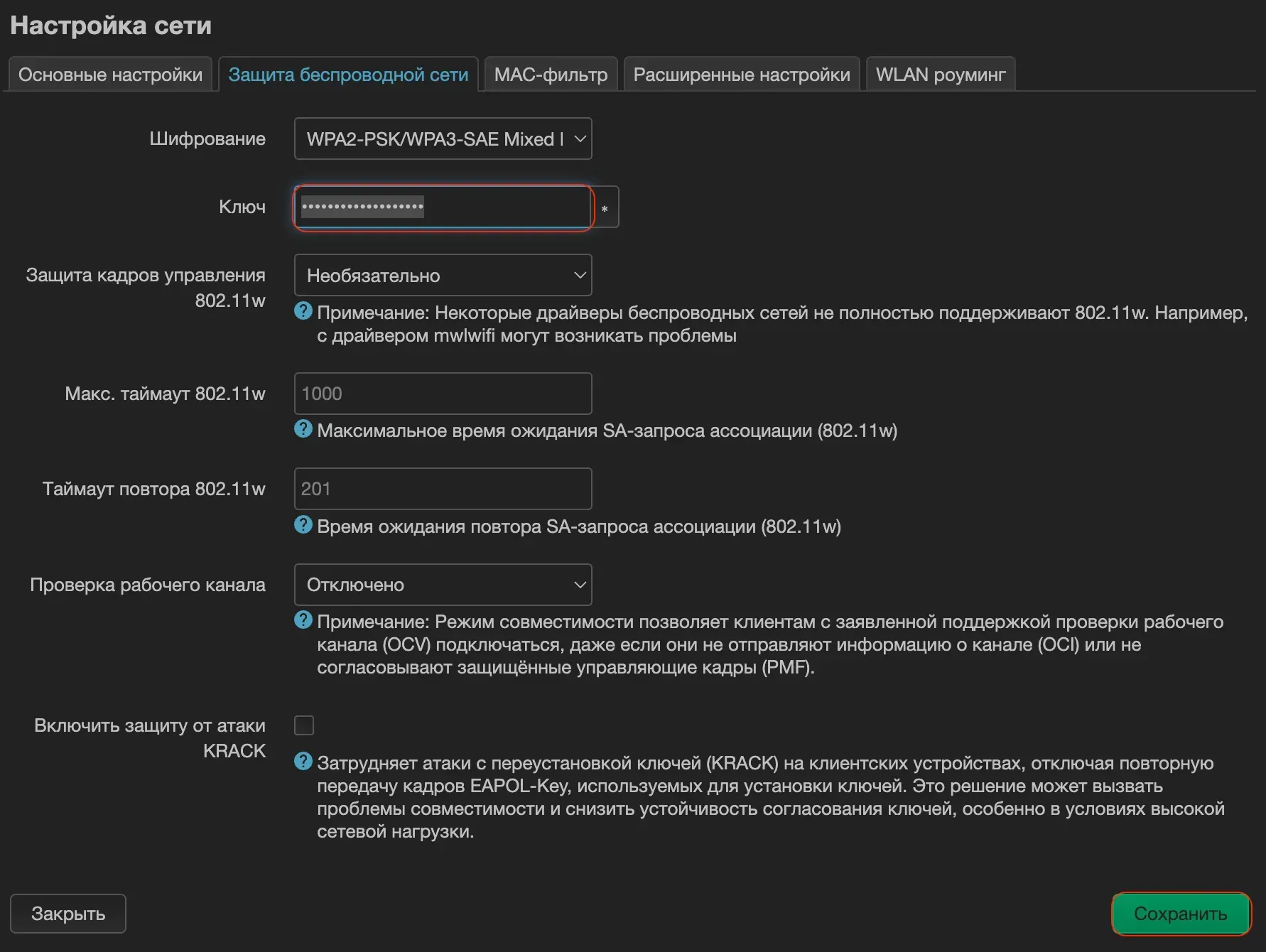
- Select
Save, thenSave & Apply.
If you are disconnected after applying the settings, reconnect to Wi-Fi using the new name and password, then open http://openwrt.lan again.
Configure the VPN
- In the admin panel, open
Services → PassWall. - Select
Subscription.
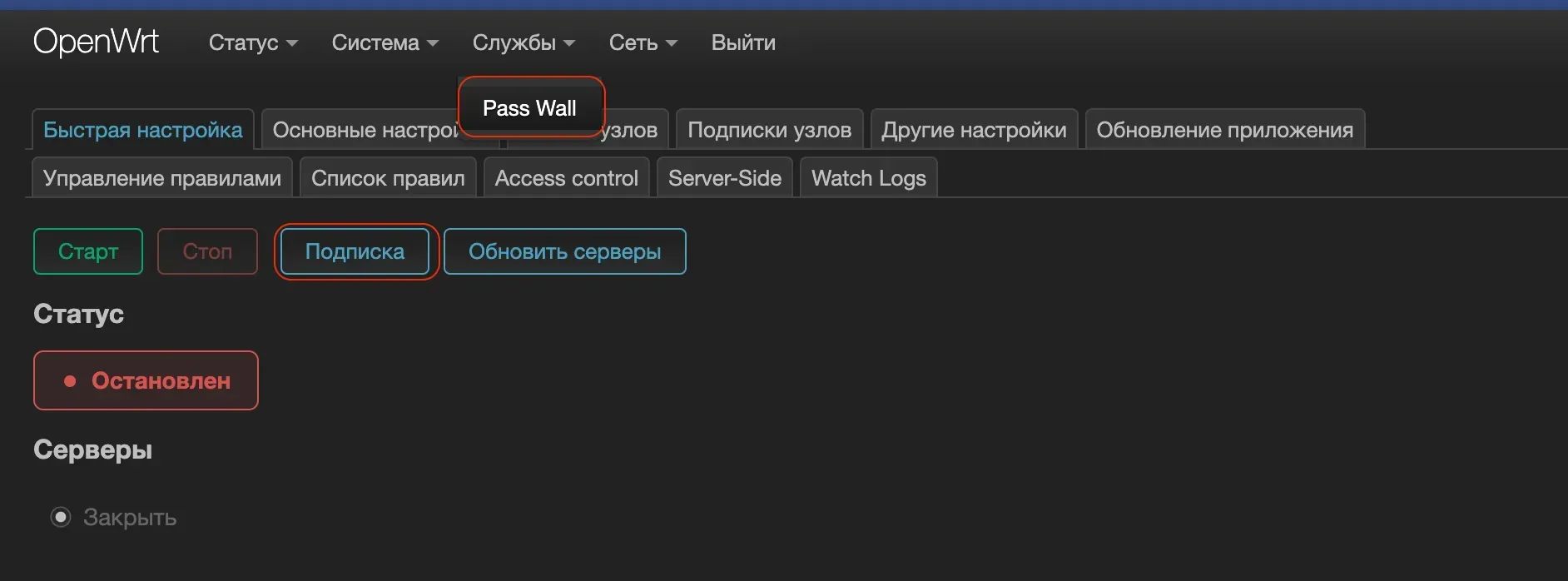
- Paste the complete personal subscription URL from the service bot where you manage your subscription.
- Wait a few seconds for the server list. If it does not appear, refresh the page.
- Select a location and press
Start.
Bypass the VPN for websites and IP addresses
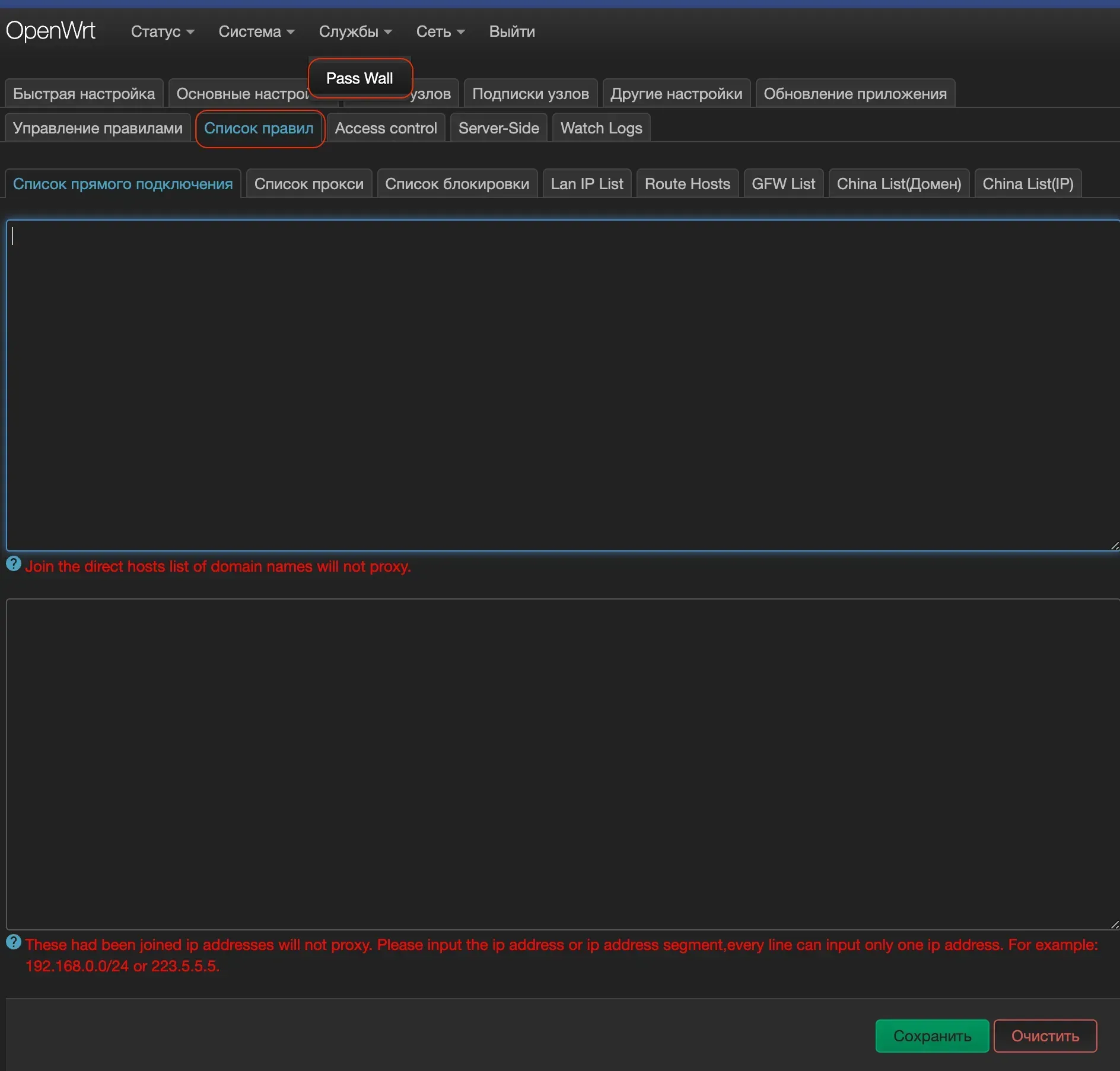
- In PassWall, open
Rule List → Direct List. - Enter domains that should bypass the VPN in the upper list.
- Enter IP addresses that should bypass the VPN in the lower list.
- Select
Save. - Restart the VPN:
Stop → Start.
Bypass the VPN for specific devices
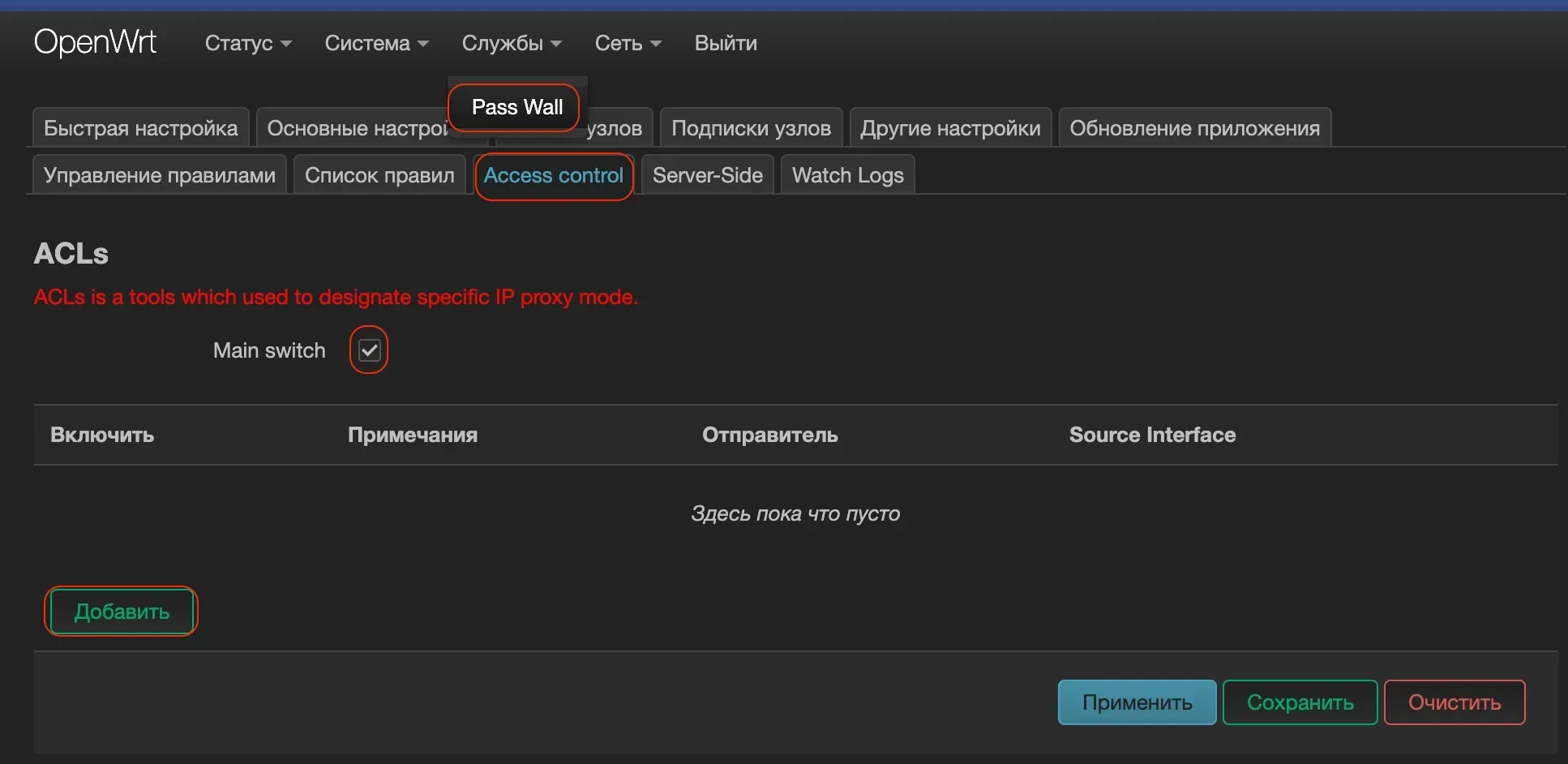
- In PassWall, open
Access Control. - Enable
Main switch. - Select
Add.
- Enter a rule name in
Remarks. - In the source device field, select one or more devices that should bypass the VPN.
- Leave both
TCP No Redir PortsandUDP No Redir Portsset toAll. - Select
Apply.
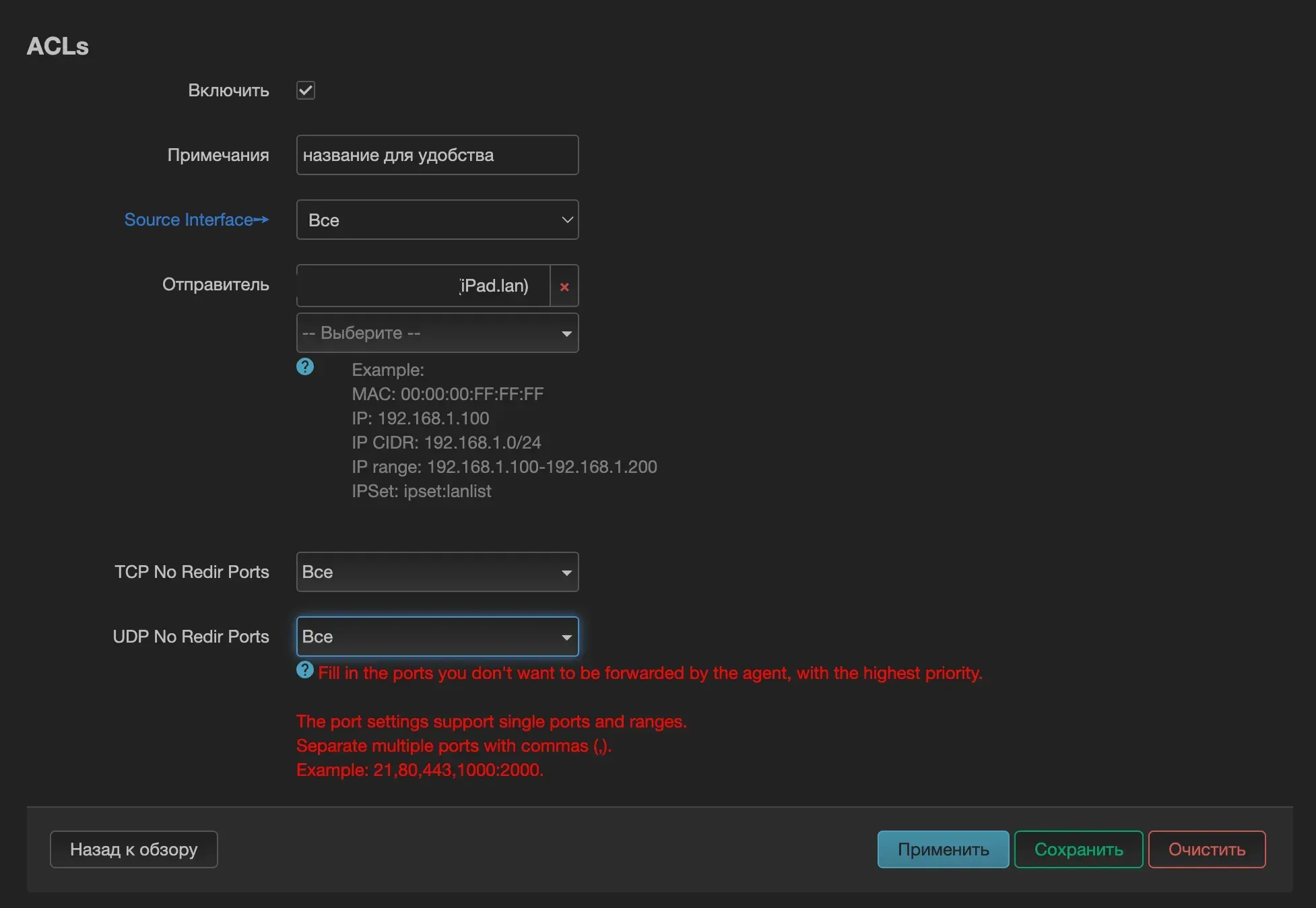
If the rule does not take effect, restart the VPN: Stop → Start.
Need help connecting?
Tell us which device you use and where you got stuck. Liberty support can help you connect.