


Liberty VPN on iPhone and iPad with Happ
Connect to Liberty VPN on iPhone and iPad using Happ.
Screenshots show the Russian interface. English labels below are translations; exact wording may vary by app version.
Before you start
- You need an active LibertyVPN subscription to connect. You can get its connection key from your account or the Telegram bot you use for your subscription. If a trial is available to you, you can obtain it through that bot.
- Keep your connection key private and hide it in screenshots.
- Turn off other VPN clients and the system proxy before connecting for the first time.
Install Happ separately
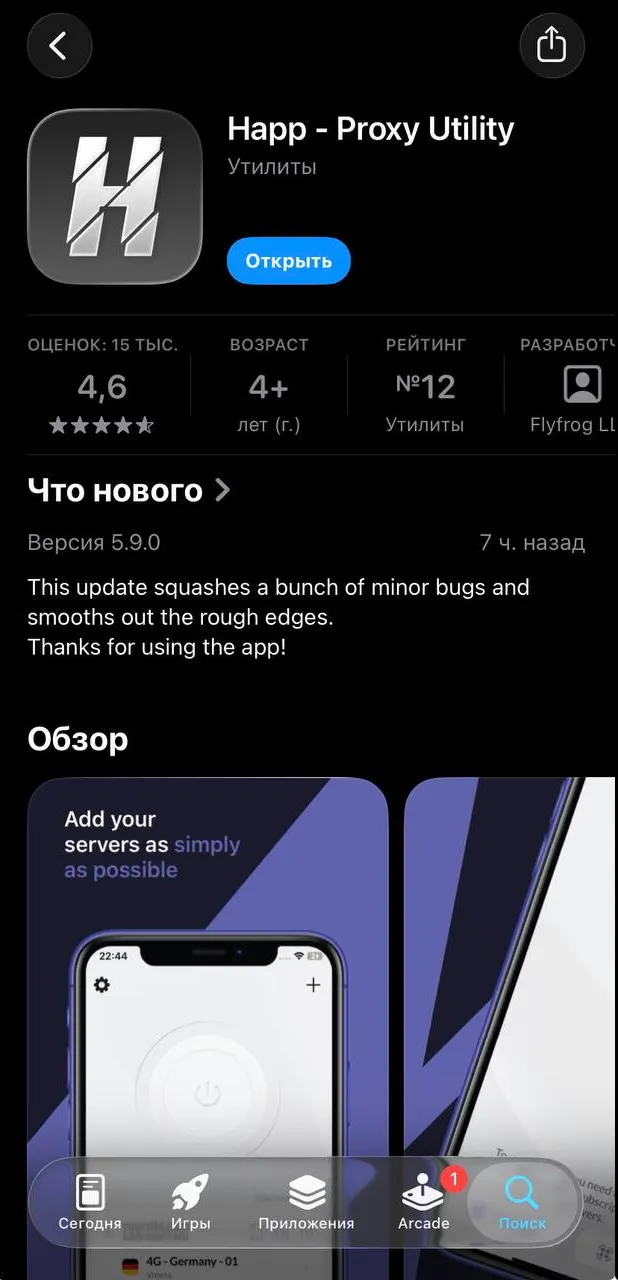
If you have not installed the app yet, open Happ in the App Store.
Where to get your connection key
Copy your connection key — your personal subscription URL — from your Liberty VPN bot or account. Then add the complete URL to your app using the steps below, without changing any part of it. You do not need to open a separate connection page.
In the Telegram bot
Open your subscription in the Liberty VPN Telegram bot. In the “Your subscription” message, copy the complete link under “Connection key” without changing any part of it.
Alternatively, select “Connect” in the same message, choose your platform, and copy the key from the resulting message.
In your account
Sign in to your Liberty VPN account and open “Profile → Instructions”. Use the copy button beside the link.
The connection action on your subscription card on the home screen also opens these instructions. You can also copy the key from “Connection Settings”.
Keep your connection key private and hide it in screenshots.
Add your subscription to Happ manually
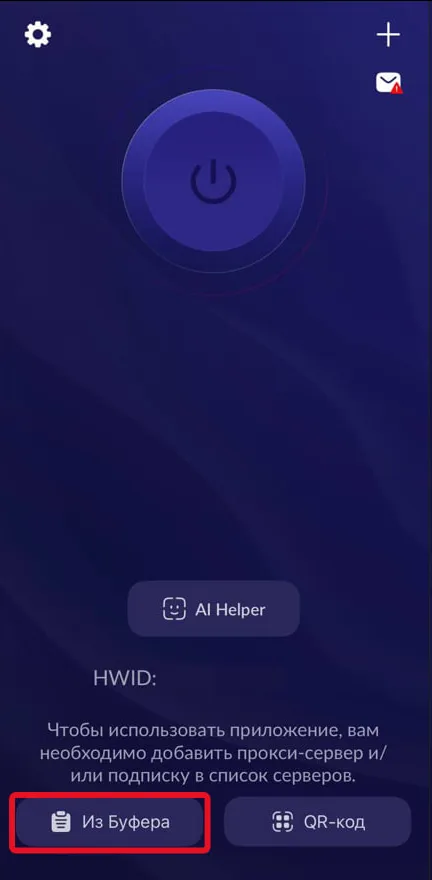
- Open Happ and select
From clipboard. - If iOS asks for permission to paste, allow it. Wait for the subscription to be added.
Connect to the VPN
- After adding your subscription, select a server in Happ.
- Press the round power button at the top of the screen.
- Approve the VPN configuration if iOS prompts you.
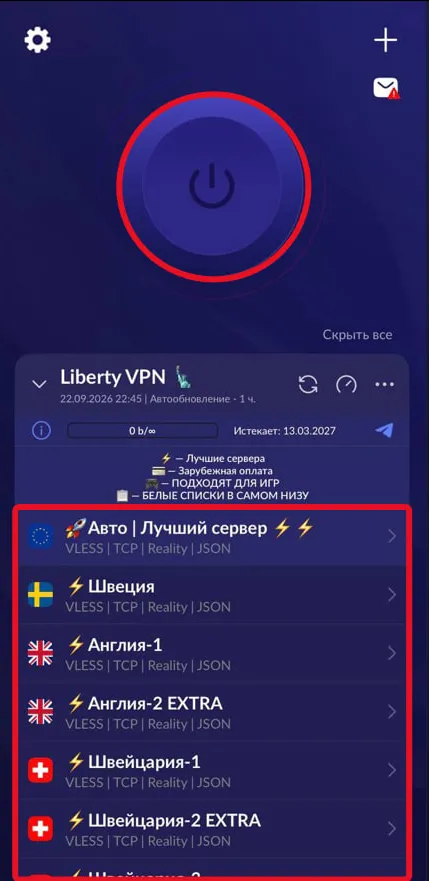
The screenshot shows where to find the servers and power button. An imported subscription and a loaded server list do not by themselves mean that the VPN is on.
Update your subscription
- Select the settings gear in Happ, scroll to
Advanced settings, and openSubscriptions.
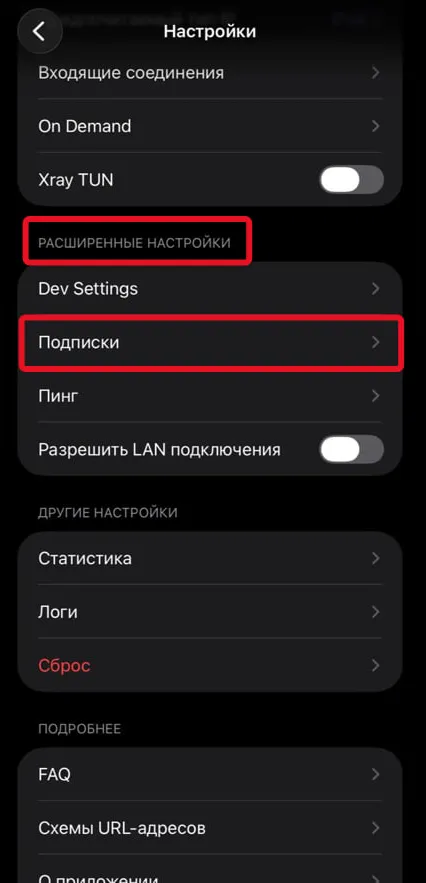
- Enable
Auto update, set the interval to1 hour, and enableUpdate on open.
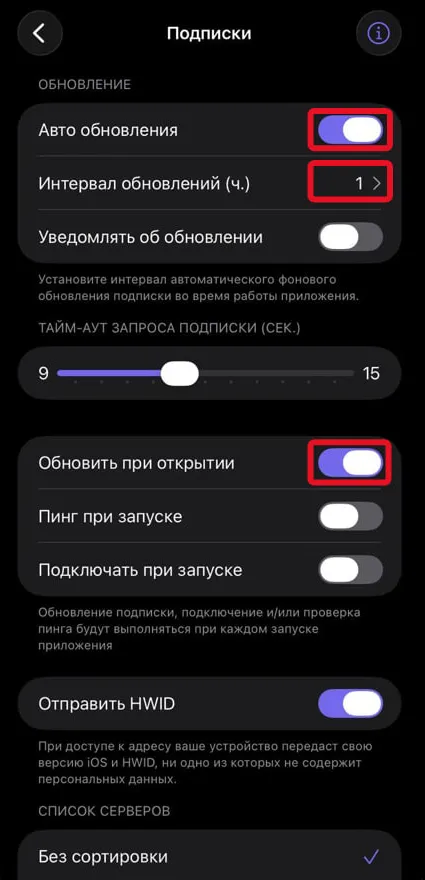
The interval in this section applies while the app is running. It does not guarantee an update every hour when Happ is closed or no longer running. If the server list has not been updated recently, open Happ before connecting; Update on open is intended for this case.
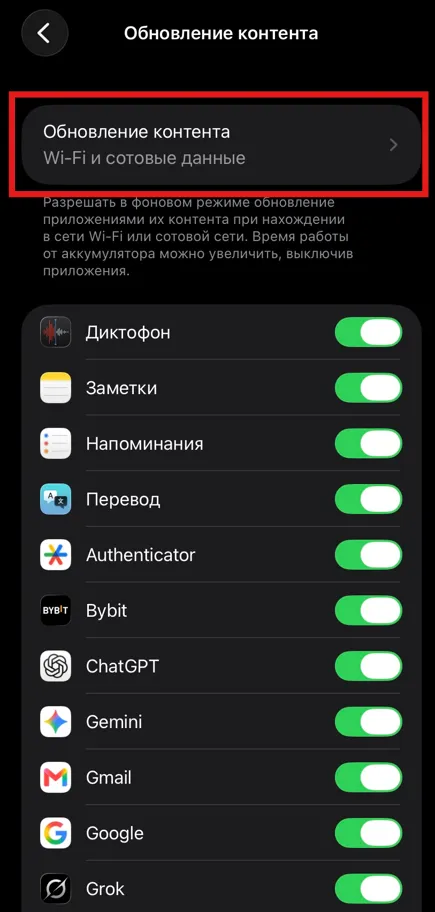
- Open your iPhone’s
Settings→General→Background App Refreshand chooseWi-Fi & Cellular Data.

- Find Happ in the app list and make sure its switch is on.
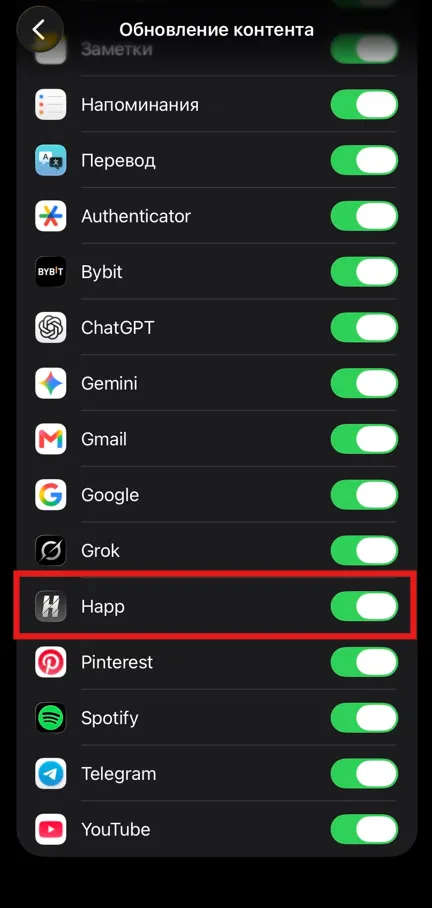
Low Power Mode turns off Background App Refresh in iOS, as described in Apple’s documentation. Open Happ before connecting when needed; hourly background updates are not guaranteed.
Configure ping
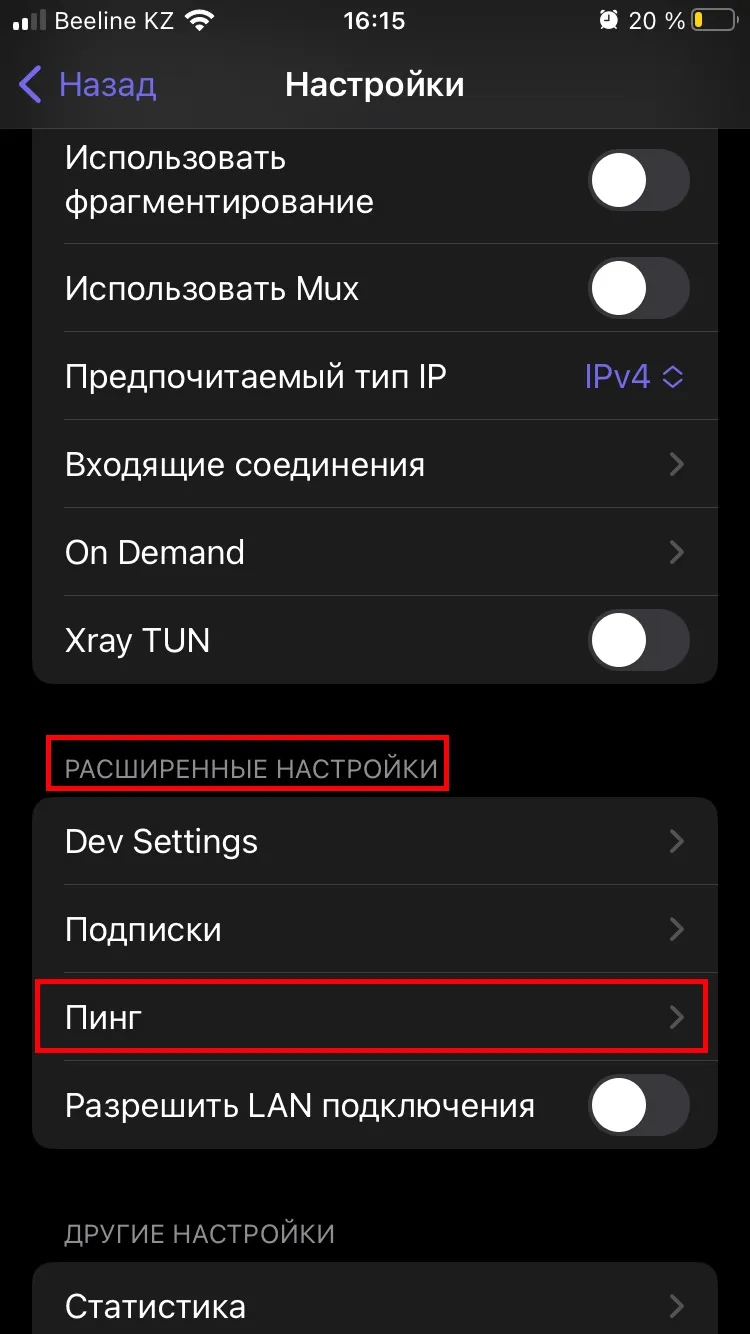
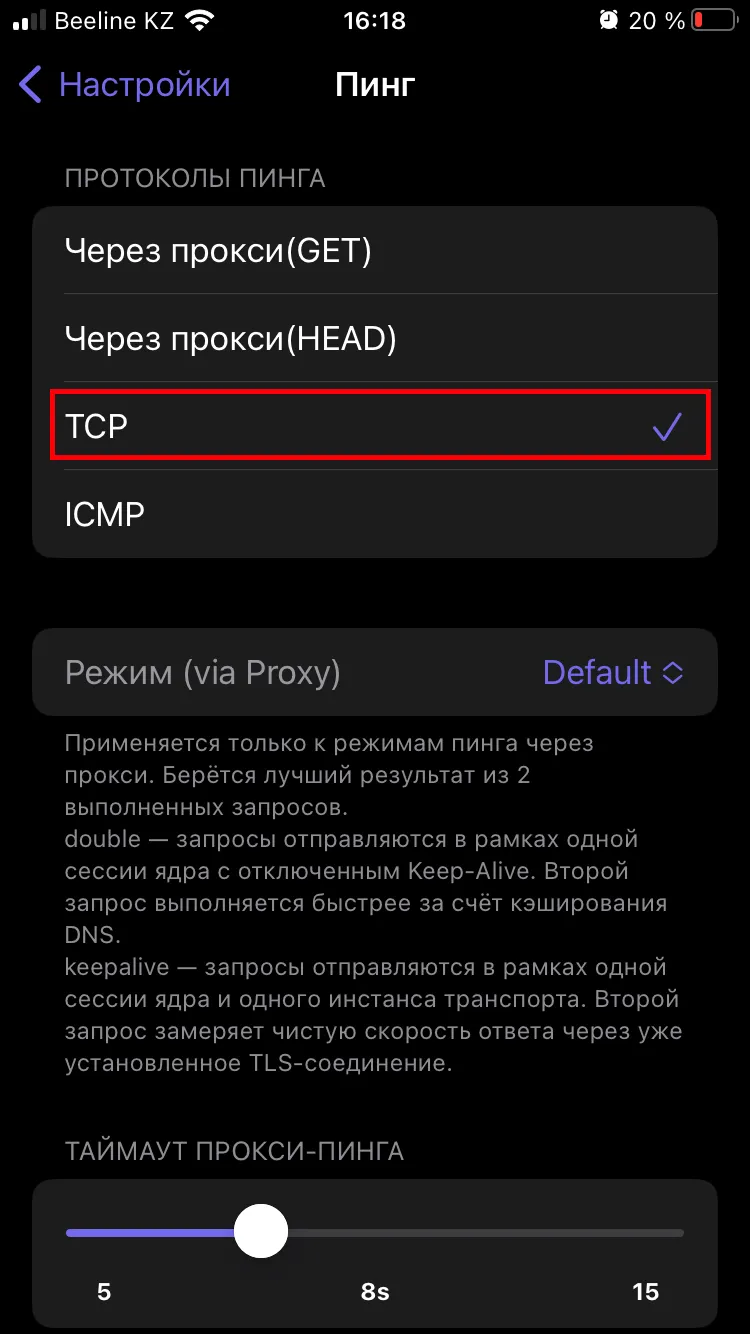
In Happ’s advanced settings, open Ping and select TCP under Ping protocols.
Need help connecting?
Tell us which device you use and where you got stuck. Liberty support can help you connect.