


Liberty VPN on Linux
Connect your Liberty VPN subscription on Linux using Happ. This guide covers installation for x64, adding your subscription and setting up the connection.
Connection steps
Screenshots are shared with the Russian guide; some interface labels are in Russian. Labels may vary by app version and language.
Before you start
- You need an active LibertyVPN subscription and access to the account or service bot associated with it.
- Use the complete personal subscription URL provided with your subscription. Keep it private.
- Turn off other VPN clients and the system proxy before connecting for the first time.
Install and configure Happ on Linux
Download the package
Download the package for your Linux distribution. The links below are for the x64 packages used in the Russian guide.
Debian / Ubuntu / Mint:
wget https://github.com/Happ-proxy/happ-desktop/releases/latest/download/Happ.linux.x64.debFedora / openSUSE / RHEL:
curl -LO https://github.com/Happ-proxy/happ-desktop/releases/latest/download/Happ.linux.x64.rpmArch / Manjaro:
curl -LO https://github.com/Happ-proxy/happ-desktop/releases/latest/download/Happ.linux.x64.pkg.tar.zstInstall the package
Open a terminal in the directory containing the downloaded file and run the command for your distribution.
Debian / Ubuntu / Mint:
sudo apt install ./Happ.linux.x64.debFedora:
sudo dnf install ./Happ.linux.x64.rpmopenSUSE:
sudo zypper install ./Happ.linux.x64.rpmArch / Manjaro:
sudo pacman -U ./Happ.linux.x64.pkg.tar.zstKeep ./ before the filename: it explicitly identifies the package file in the current directory.
Where to get your connection key
Copy your connection key — your personal subscription URL — from your Liberty VPN bot or account. Then add the complete URL to your app using the steps below, without changing any part of it. You do not need to open a separate connection page.
In the Telegram bot
Open your subscription in the Liberty VPN Telegram bot. In the “Your subscription” message, copy the complete link under “Connection key” without changing any part of it.
Alternatively, select “Connect” in the same message, choose your platform, and copy the key from the resulting message.
In your account
Sign in to your Liberty VPN account and open “Profile → Instructions”. Use the copy button beside the link.
The connection action on your subscription card on the home screen also opens these instructions. You can also copy the key from “Connection Settings”.
Keep your connection key private and hide it in screenshots.
Add your subscription and connect
- Copy your personal subscription URL from your bot or account using Where to get your connection key.
- Start Happ. If your installation requires running the app with administrator privileges for TUN mode, use:
sudo happ- On the initial
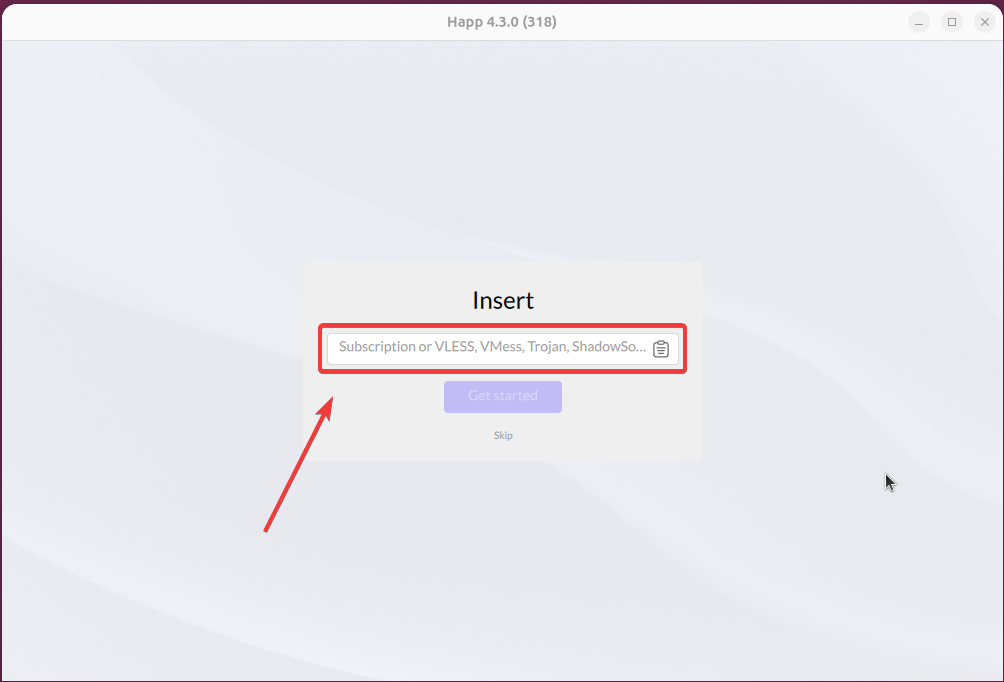
Insertscreen, paste the URL into the subscription field manually or use the clipboard icon, then selectGet started. If initial setup is already complete, add the subscription from the clipboard usingFrom clipboardorAdd (+) → Paste from clipboard; the label depends on the app version and language.
- Select a location from the server list and press the round power button to connect. Make sure TUN mode is enabled.
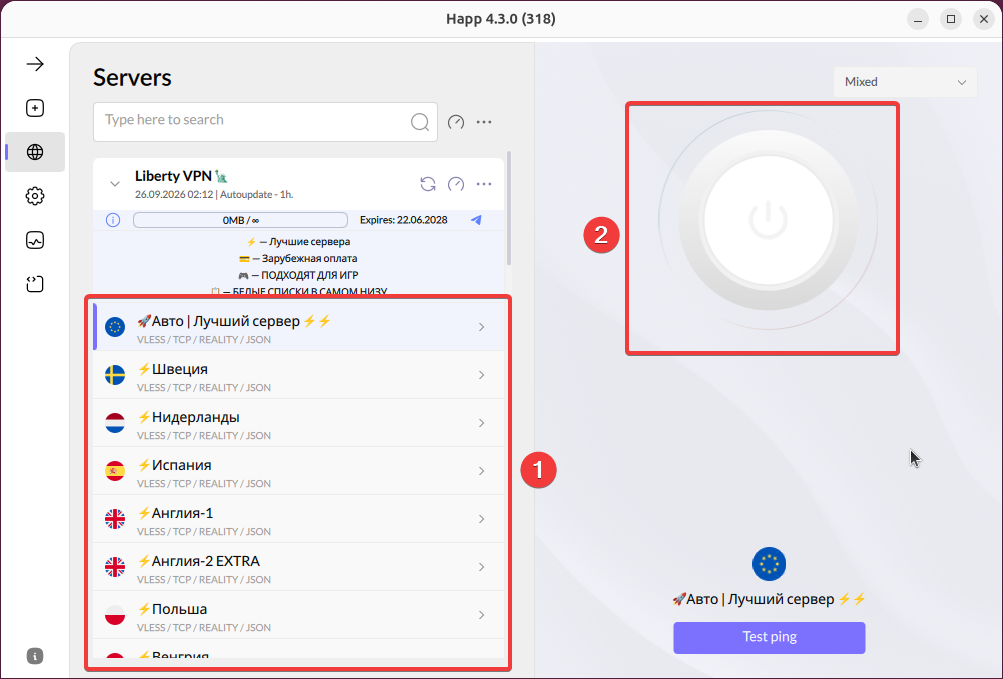
Important: Select a server manually before your first connection. To switch servers, disconnect from the VPN, select the new server, and reconnect.
Configure automatic updates and ping
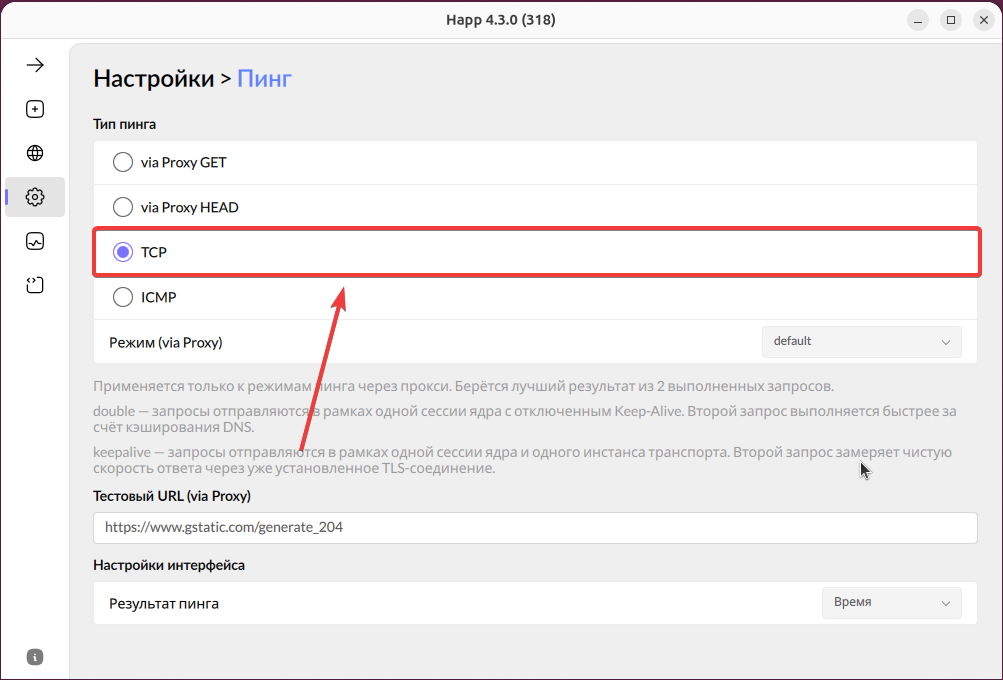
These are the recommended settings for this guide. Choosing TCP changes the ping test; it does not turn on the VPN.
- Select the settings gear, scroll to
Advanced settings, and openSubscriptions. - Enable
Auto update, set the interval to1 hour, and enableUpdate on open. - Open
Settings → Pingand chooseTCPas the ping type, as shown in the screenshot.
Check glibc compatibility
Check the official Happ system requirements, which list glibc 2.31 or newer for Linux. To check your installed glibc version, run:
ldd --versionNeed help connecting?
Tell us which device you use and where you got stuck. Liberty support can help you connect.